
The new Sync Changes feature gives you control over whether changes in your workflow’s email action should update the template or not. Enable or disable sync easily with a checkbox while selecting templates for email actions.
What’s New
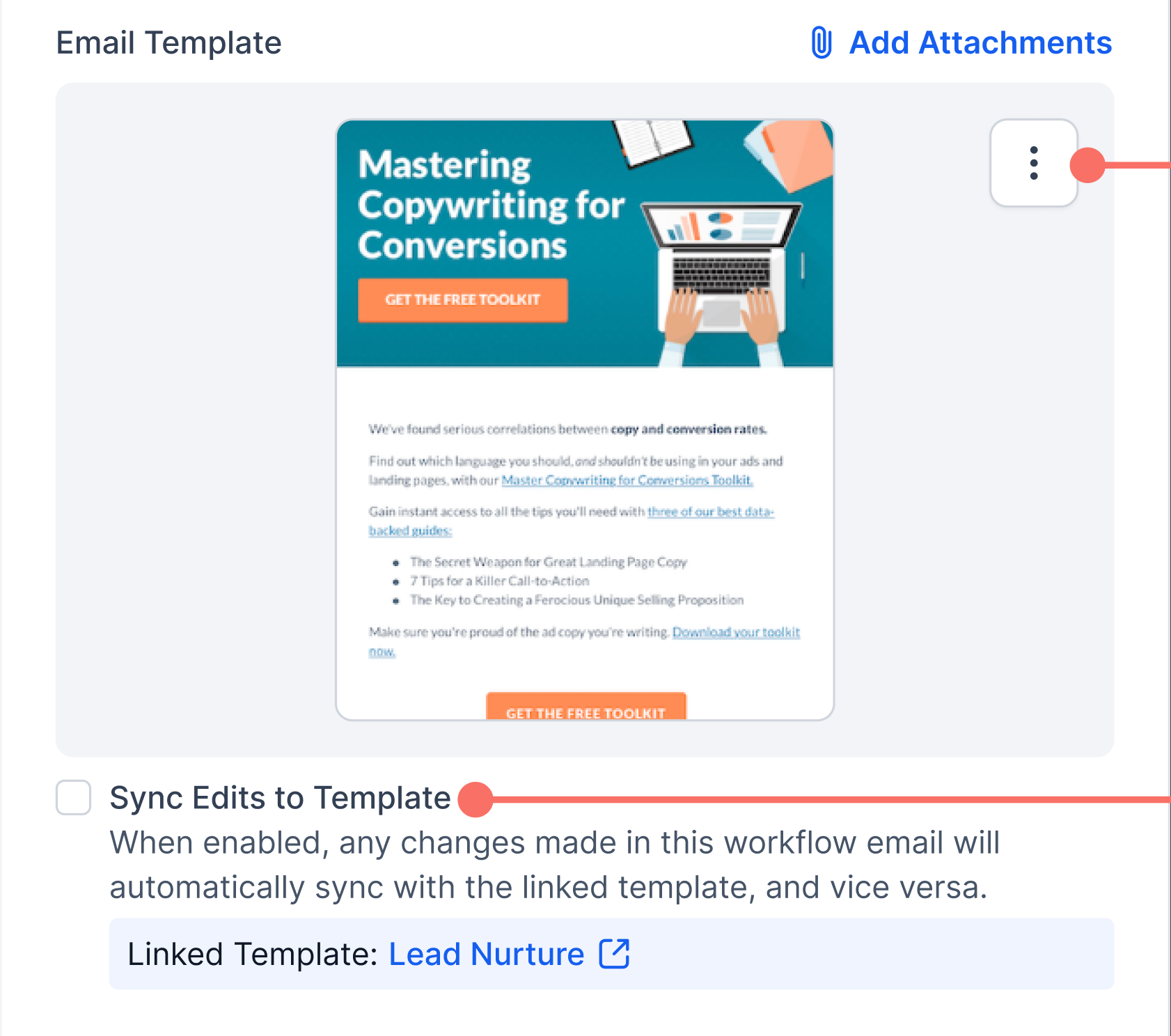
- Sync Possibilities: What Happens When Sync is ON or OFF
- When Sync is ON:
- Any changes you make in your workflow email will automatically update the original template, and changes to the template will update your workflow email as well.
- This is bi-directional syncing—both the workflow action and the template always match.
- When Sync is OFF:
- Changes you make in your workflow email do not affect the original template, and future changes to the template won’t impact your workflow.
- The workflow email and template now have independent content and updates.
How to Use
- A “Sync Edits to Template” checkbox appears.
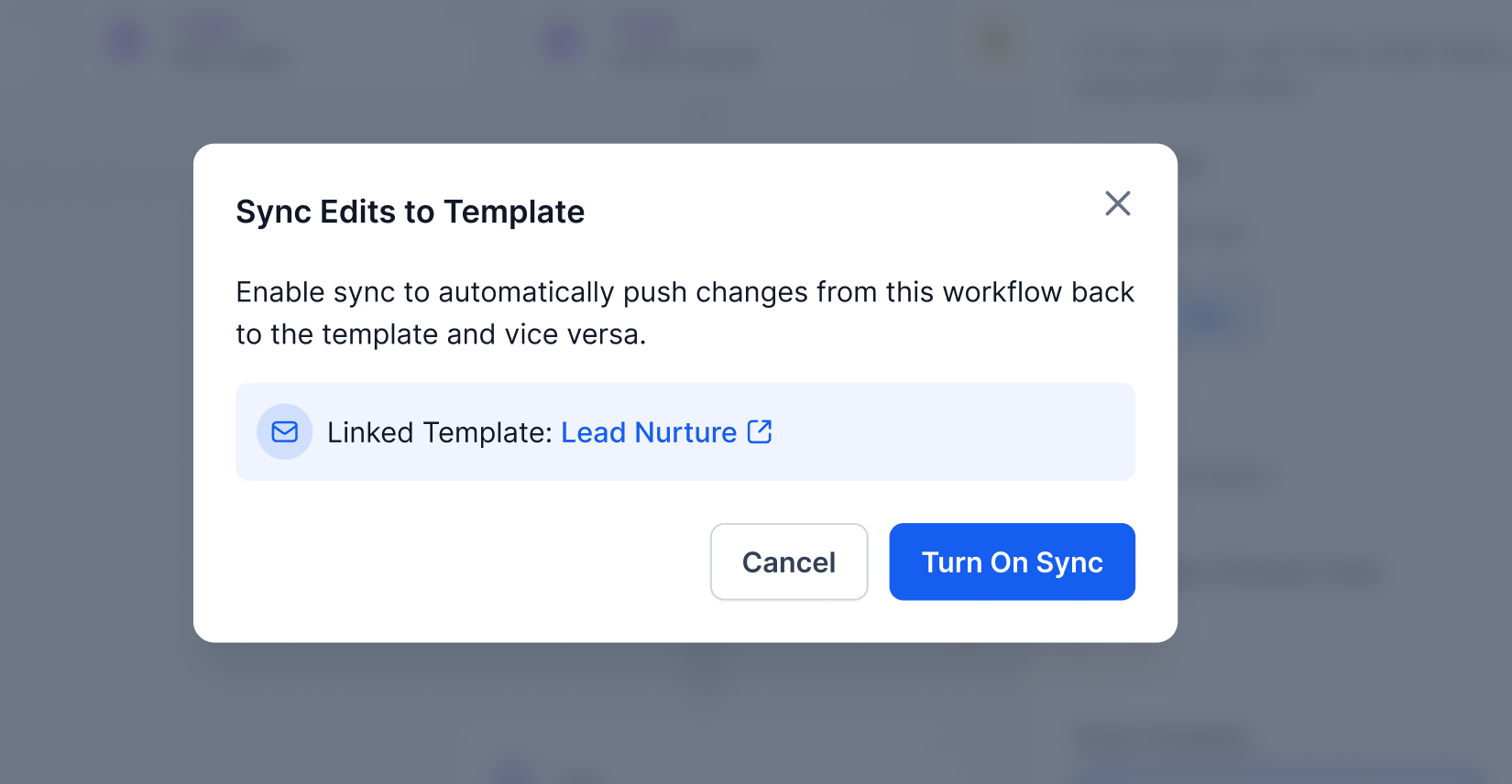
- If you check it (turn ON):
- A modal will confirm: changes in either the workflow or template update the other.
- Click “Turn On Sync” to confirm, now all edits stay in sync.
- Example: Edit your workflow email and the template updates; edit the template and your workflow email updates too.
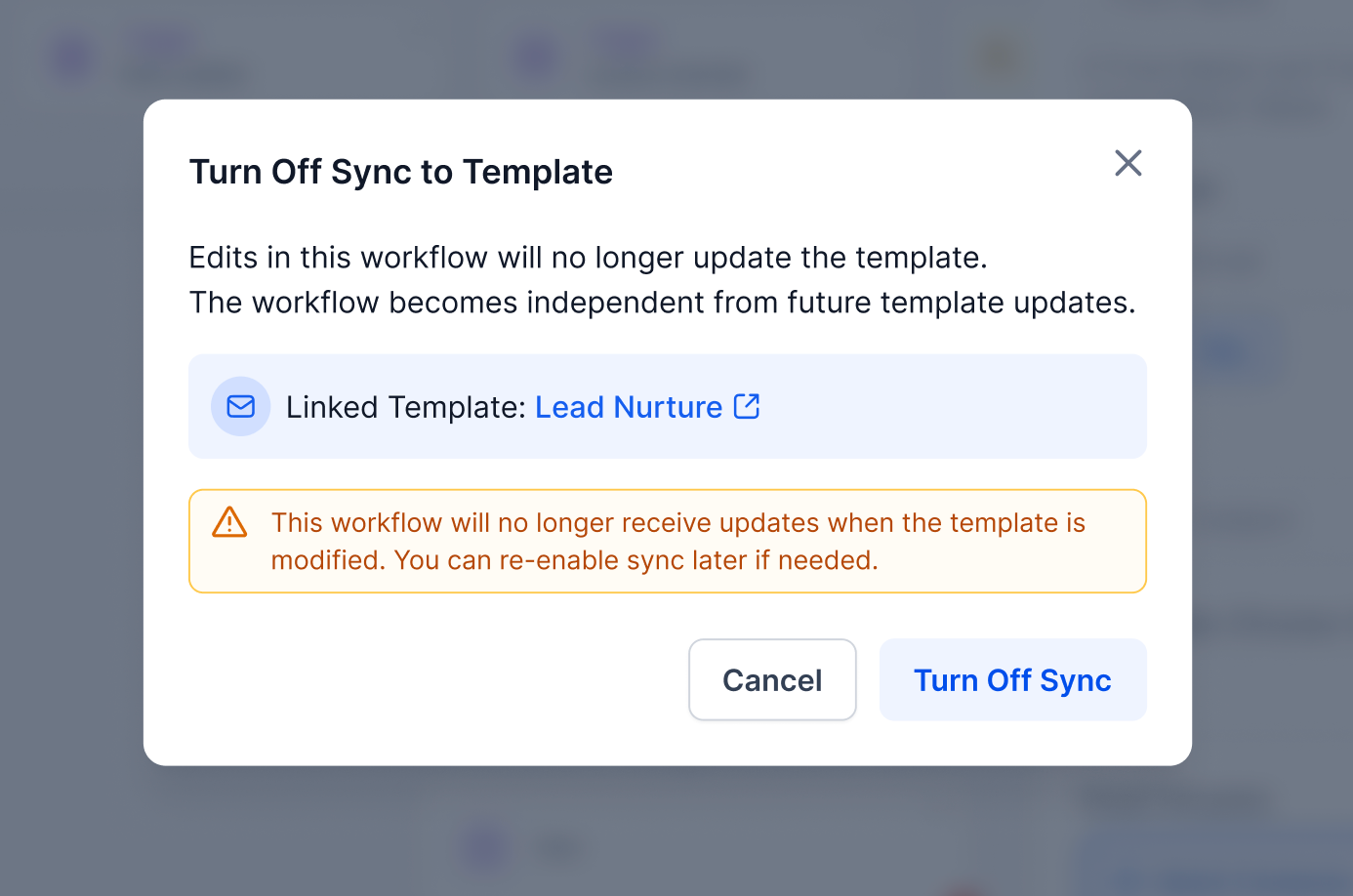
- If you leave it unchecked or turn OFF:
- A modal will explain your workflow email and template will not affect each other.
- Click “Turn Off Sync” to confirm, now edits are independent.
- Example: Changes in the workflow email don’t update the template, and template changes won’t update this workflow email.
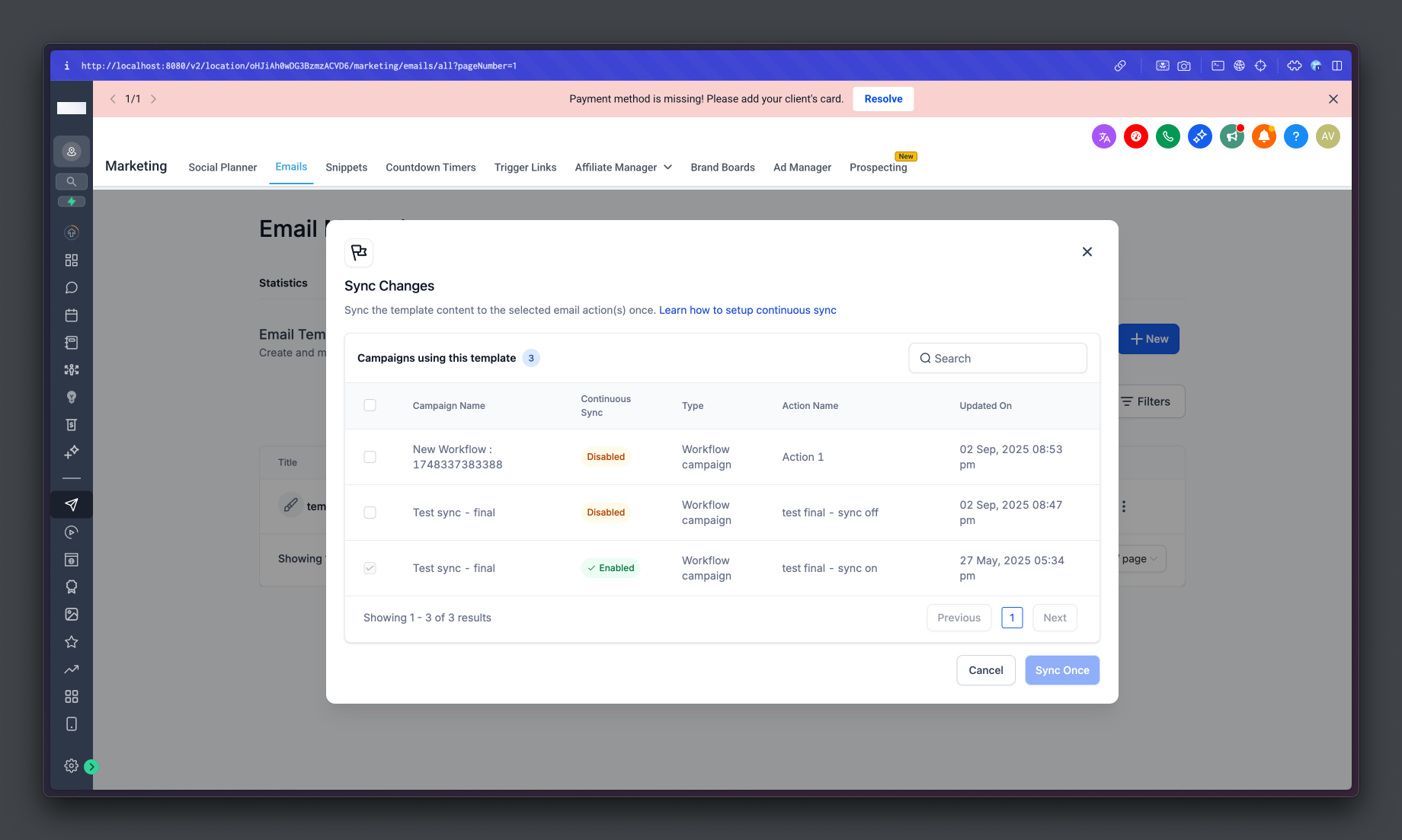
- Sync Changes Modal:
- This modal exist in the templates section to see which all email actions in workflows are connected to the template and whether they’re syncing changes.
- Access it via the kebab menu in the email builder under “Sync Changes.” in templates.
- Inside the modal, you will see:
- A list of all email actions linked to the template
- The Continuous Sync status (enabled/disabled) for each action
- Check box will be ticked for enabled email actions and unticked for disabled Email actions
- User will be able to select the email action and will be able to Sync the Template content to Email action for one time for email actions where continuous sync is disabled
- Once the user clicks on ‘Sync Once’ CTA, a success notification will pop on the screen.
- User Will not be able to untick the checkbox for Email action where continuous sync is enabled from this modal.
FAQ
Q1: What is the “Sync Edits to Template” feature?A: This allows changes made in a workflow email action to automatically update the linked template, and vice versa. Both will always stay in sync if enabled.
Q2: When does the Sync Changes option appear?A: You’ll see the “Sync Edits to Template” checkbox when adding or editing an email action and selecting an existing template.
Q3: What happens if I turn ON sync?A: All edits in your workflow email or original template are reflected in both places—everything stays perfectly matched.
Q4: What happens if I turn OFF sync?A: The workflow email and the template become independent. Changes made in one will not affect the other.
Q5: How do I view which workflows are synced to a template?A: Go to the kebab menu in the email builder and select “Sync Changes.”
Q6: Can I change the sync setting after setup?A: Yes, you can turn sync ON or OFF for any email action later. Changes will be confirmed in a modal.
Q7: What is the default behavior of the “Sync Edits to template” checkbox?A: Default behavior of Sync Changes Checkbox:
- Existing email action with changes made to template : Default is OFF.
- Existing email action with no changes changes made to template : Default is ON.
- New email action using a template: Default is OFF.