
WhatsApp Business Integration Guide
Connect your WhatsApp Business account to Kanamé. Choose the method that fits your situation.
Choose Your Method
1 Connect Your Existing WhatsApp Business AppKeep using your existing app alongside the platform (Coexistence) 2 Connect a New WhatsApp Business NumberStarting fresh with a brand-new number 3 Migrate from an Existing BSPSwitch from another Business Solution Provider
Method 1 Connect Your Existing WhatsApp Business App
Unsupported CountriesThe Coexistence feature is not available for phone numbers from Nigeria or South Africa.
1
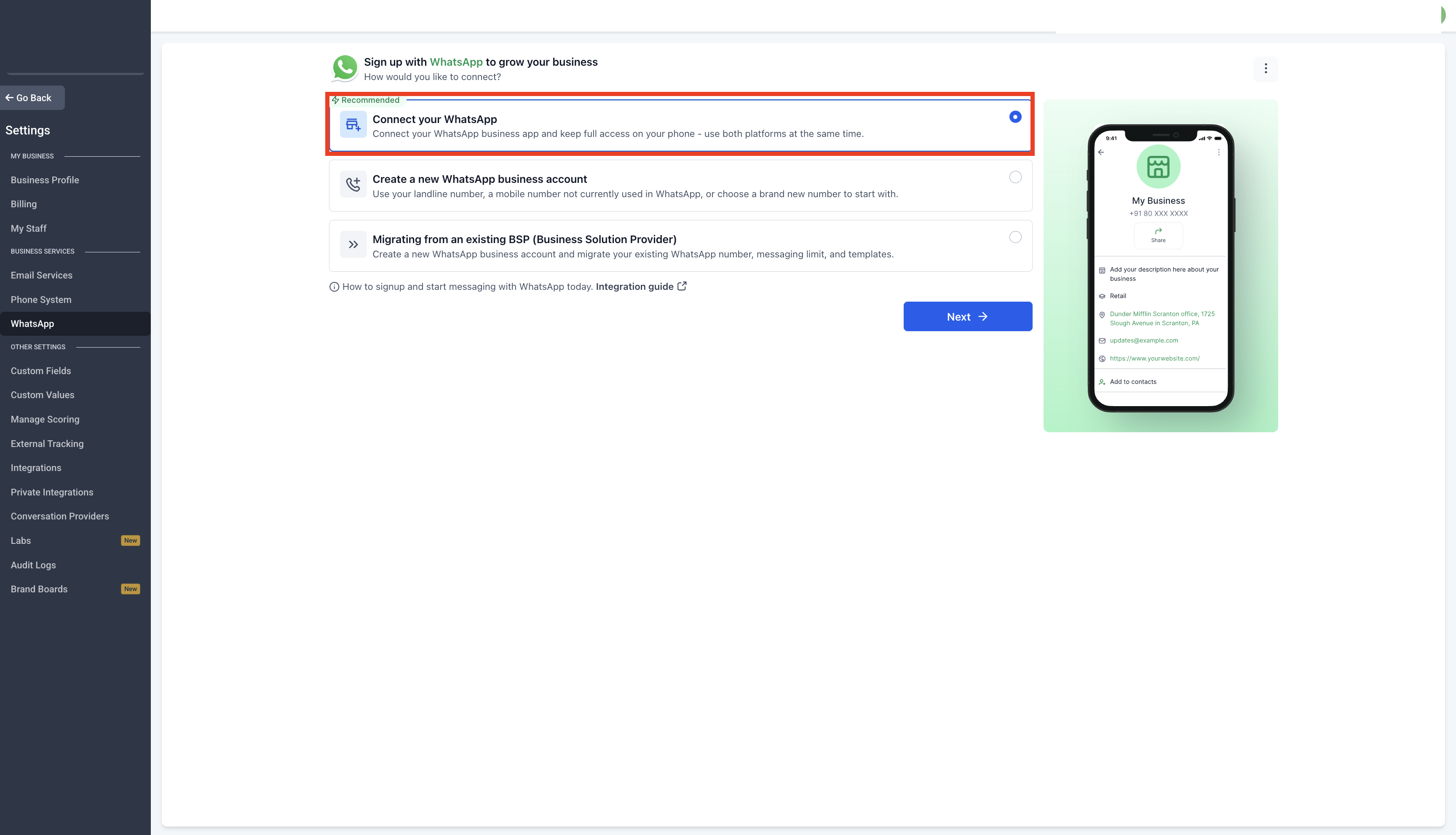
Start the Signup Process
Navigate to Settings > WhatsApp and select Connect your WhatsApp.
2
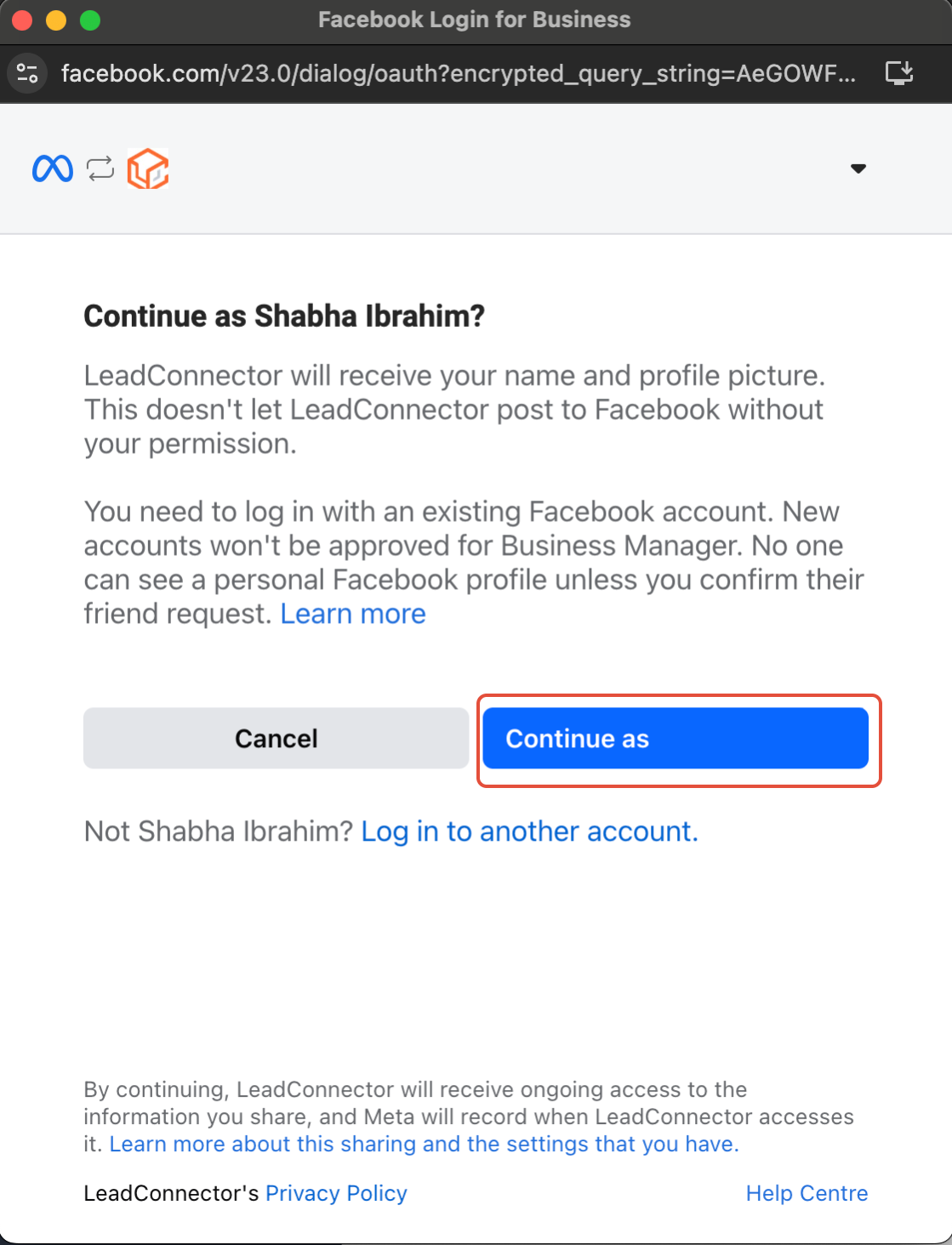
Continue with Signup
Follow the on-screen instructions to begin the registration process.
3
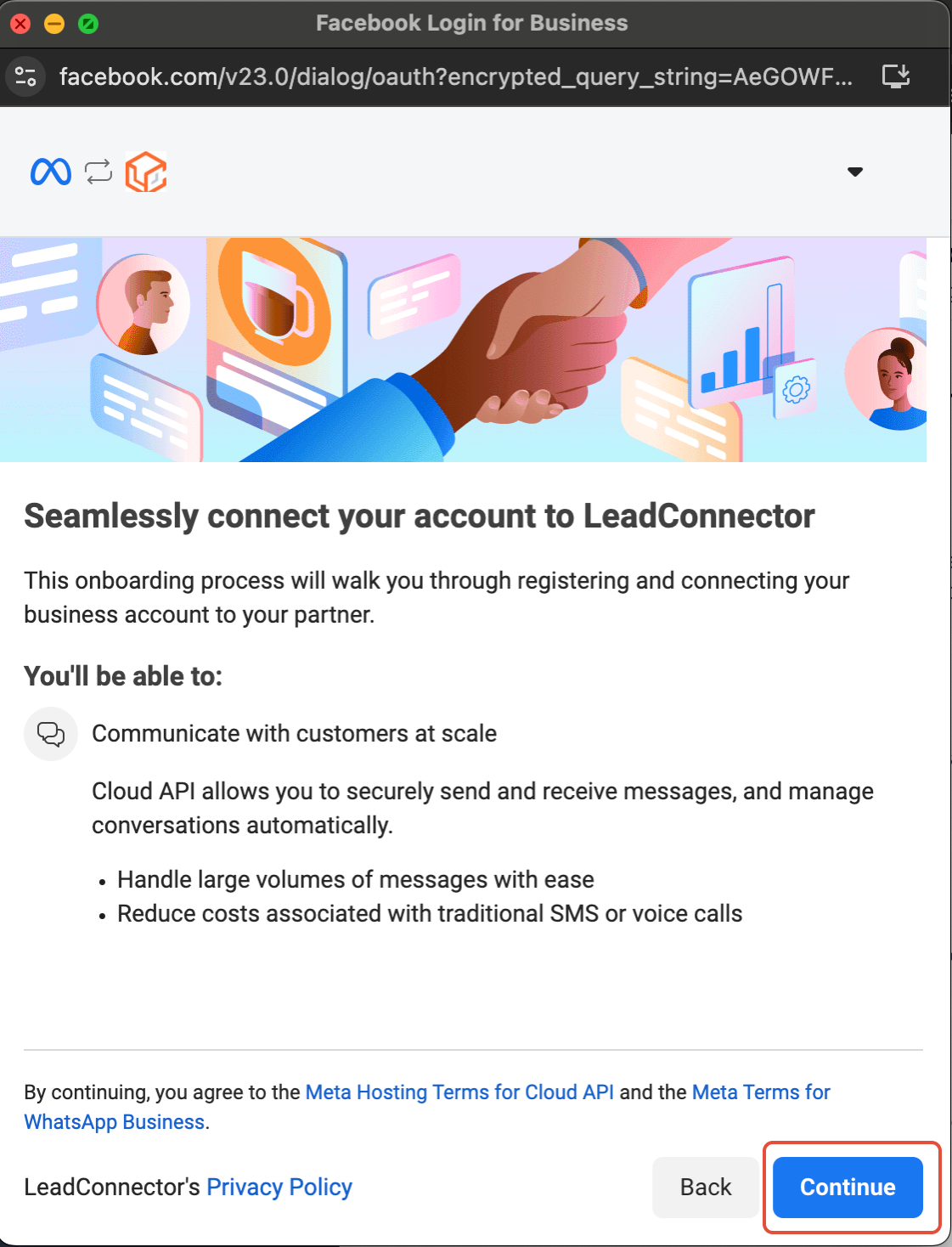
Connect to Kanamé
Click Continue to proceed with the integration.
4
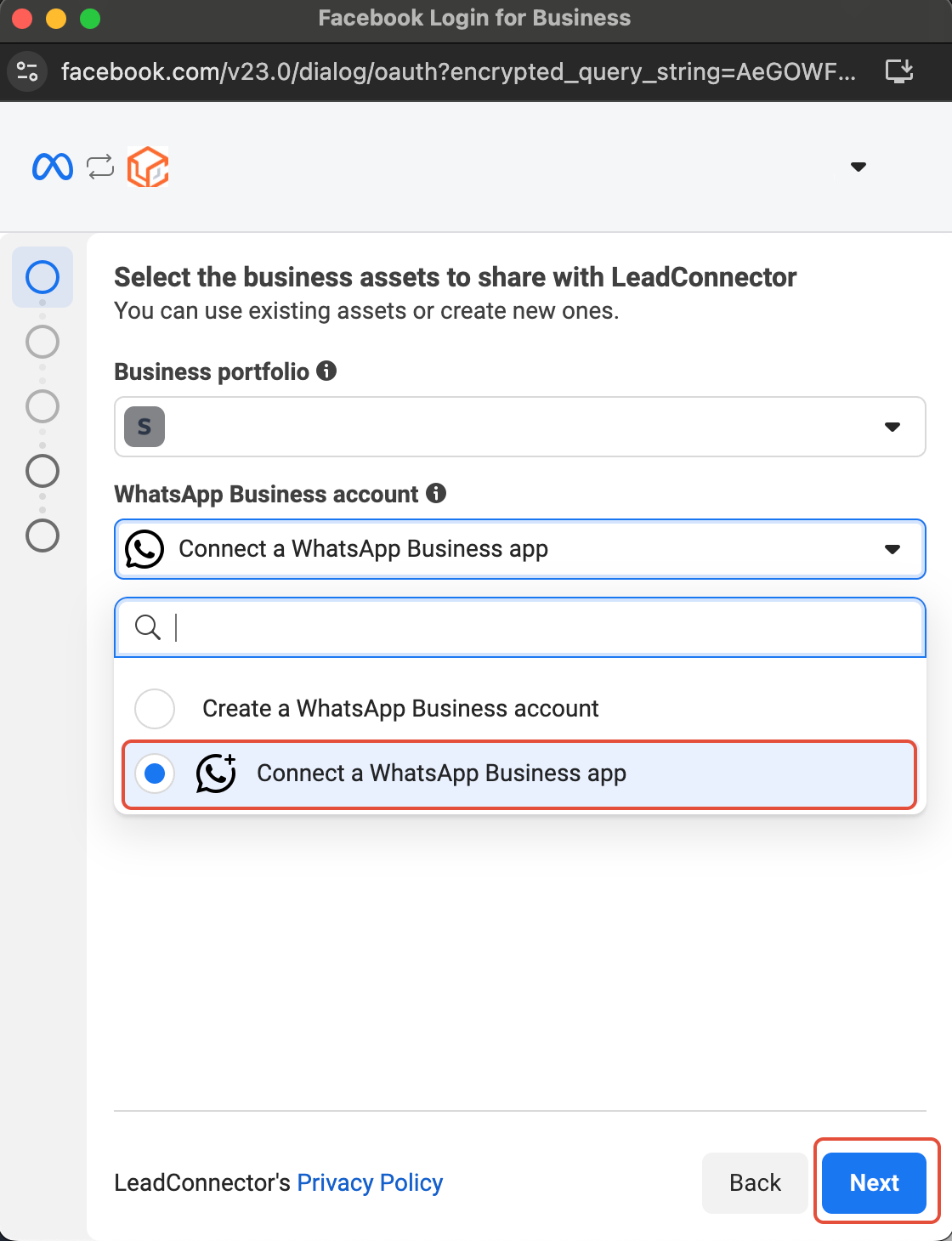
Select WhatsApp Business App
Click Connect a WhatsApp Business App, then tap Next.
5
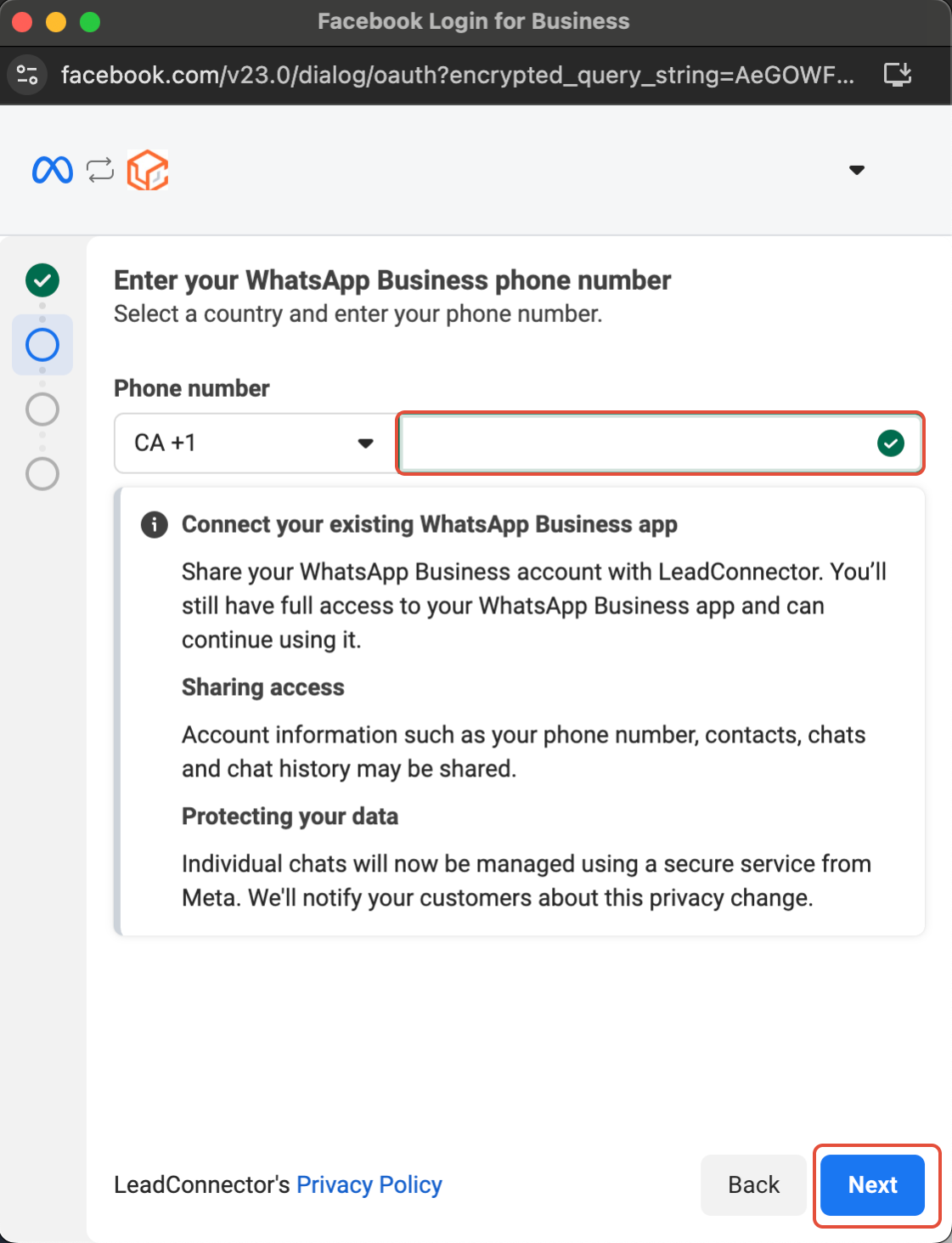
Enter Your Phone Number
Add your WhatsApp Business phone number and tap Next.
6
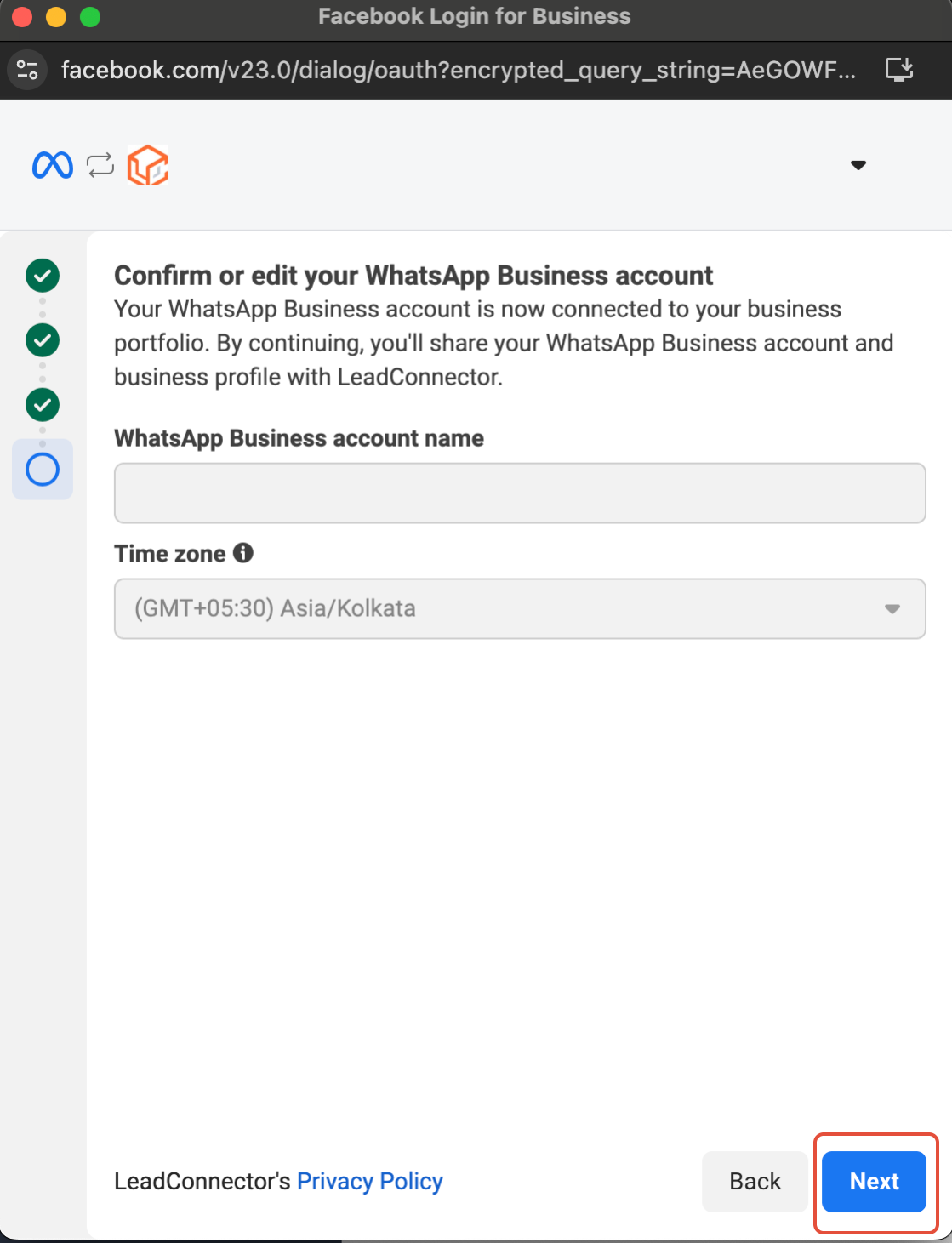
Verify Your Account Details
Review your WhatsApp Business Account details and make any corrections before proceeding.
7
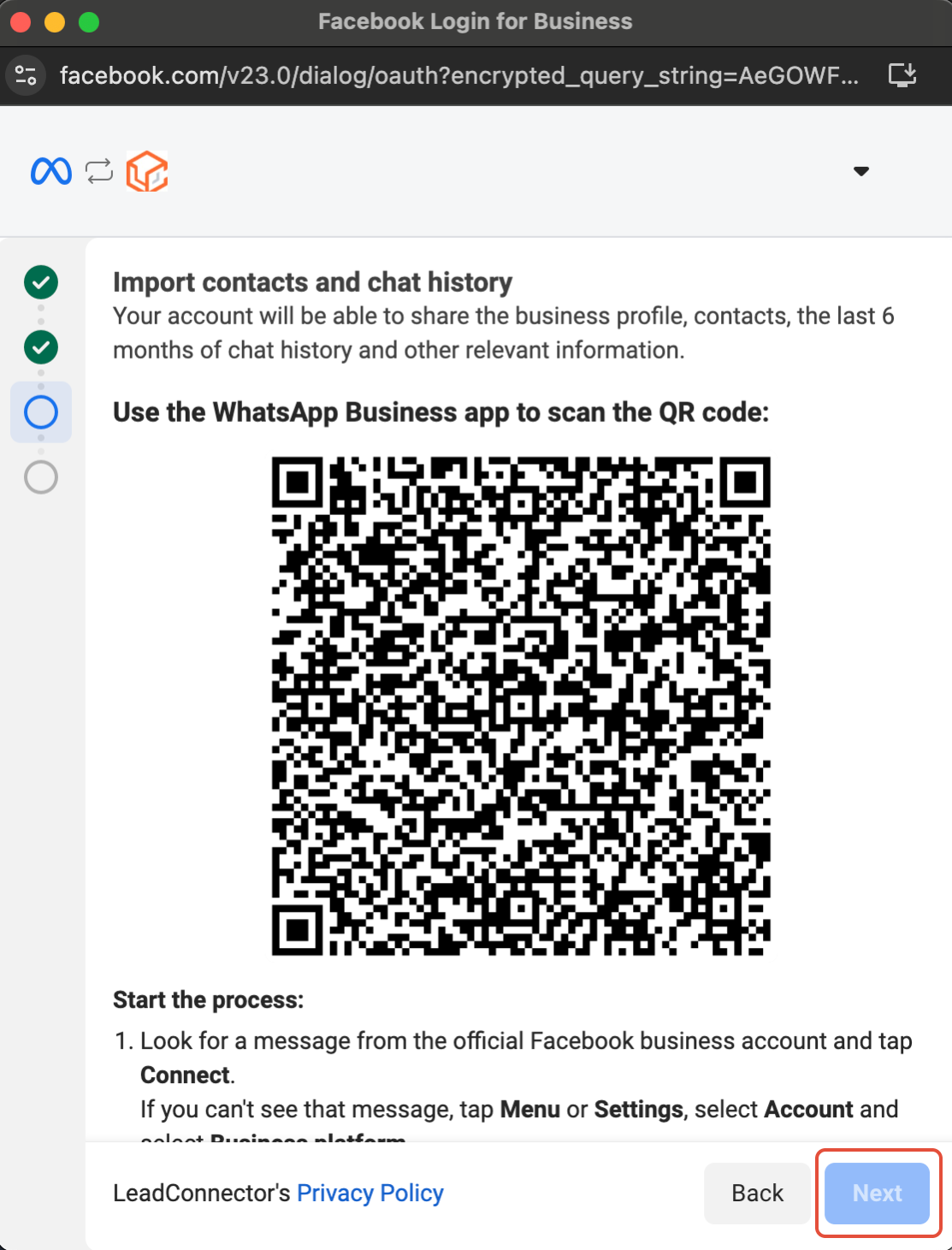
Import Contacts & Chat History
Import contacts and up to six months of chat history from the WhatsApp Business App into Kanamé.
- Update your WhatsApp Business App to the latest version before this step.
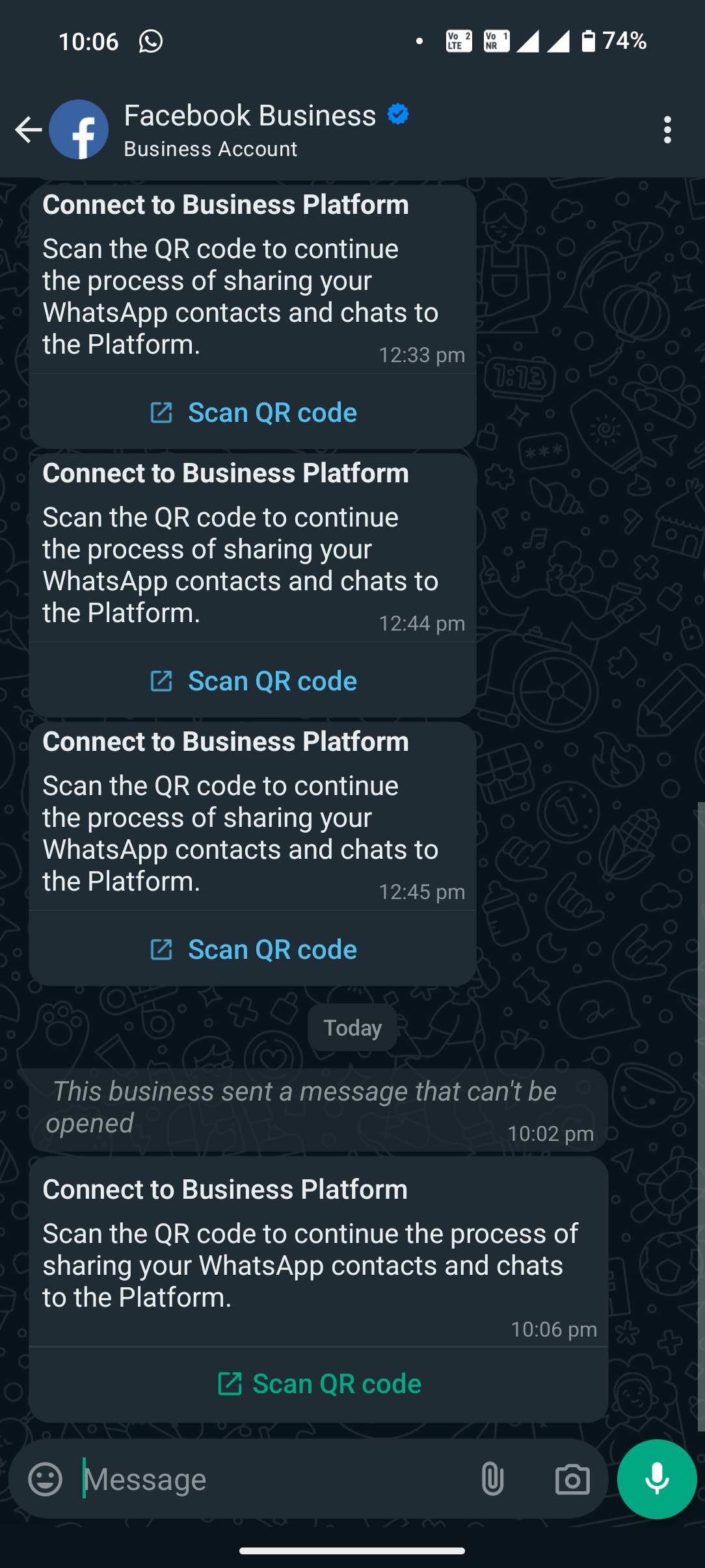
- Look for a message from the official Facebook Business account and scan the QR code when prompted.
8
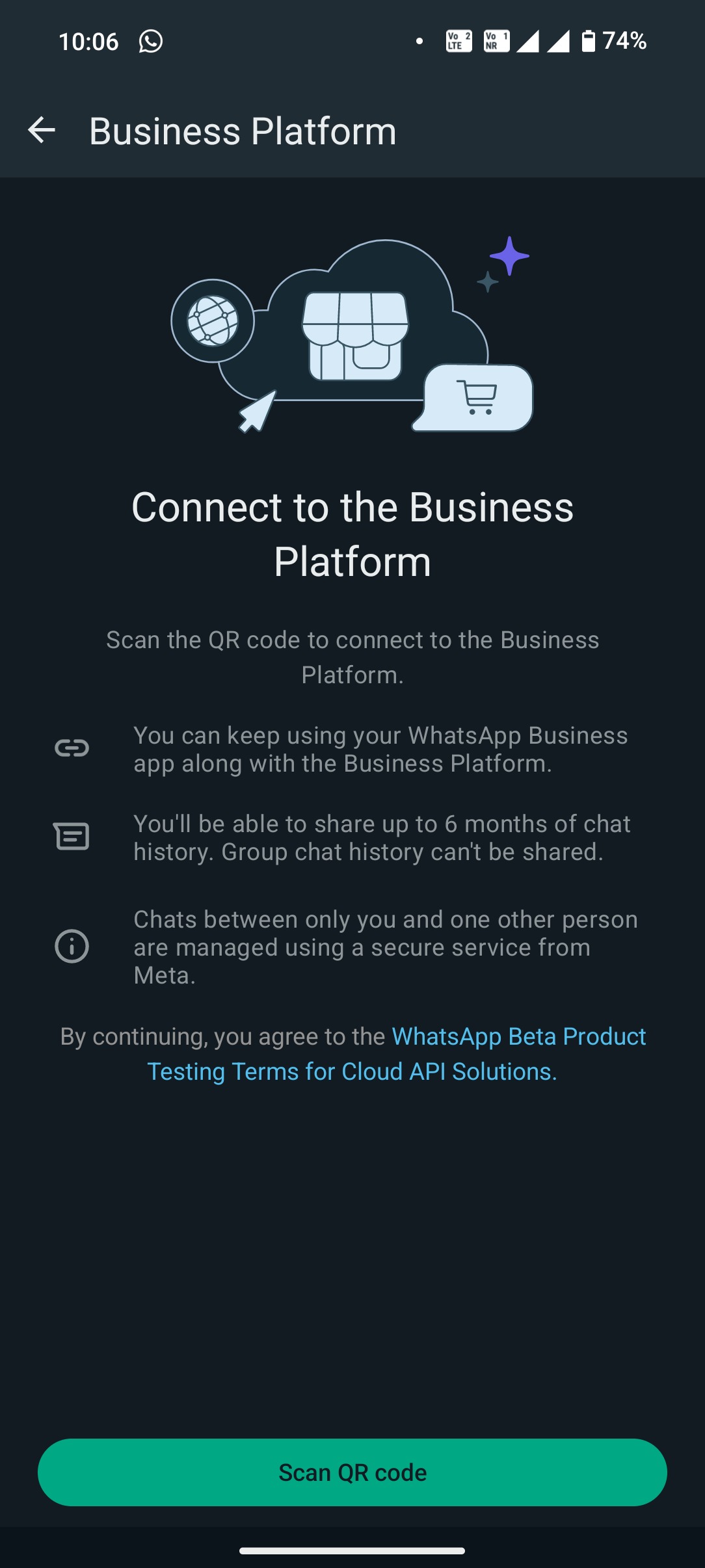
Connect to the Business Platform
Scan the QR code to complete the connection. You can continue using your WhatsApp Business App alongside the Business Platform.
9
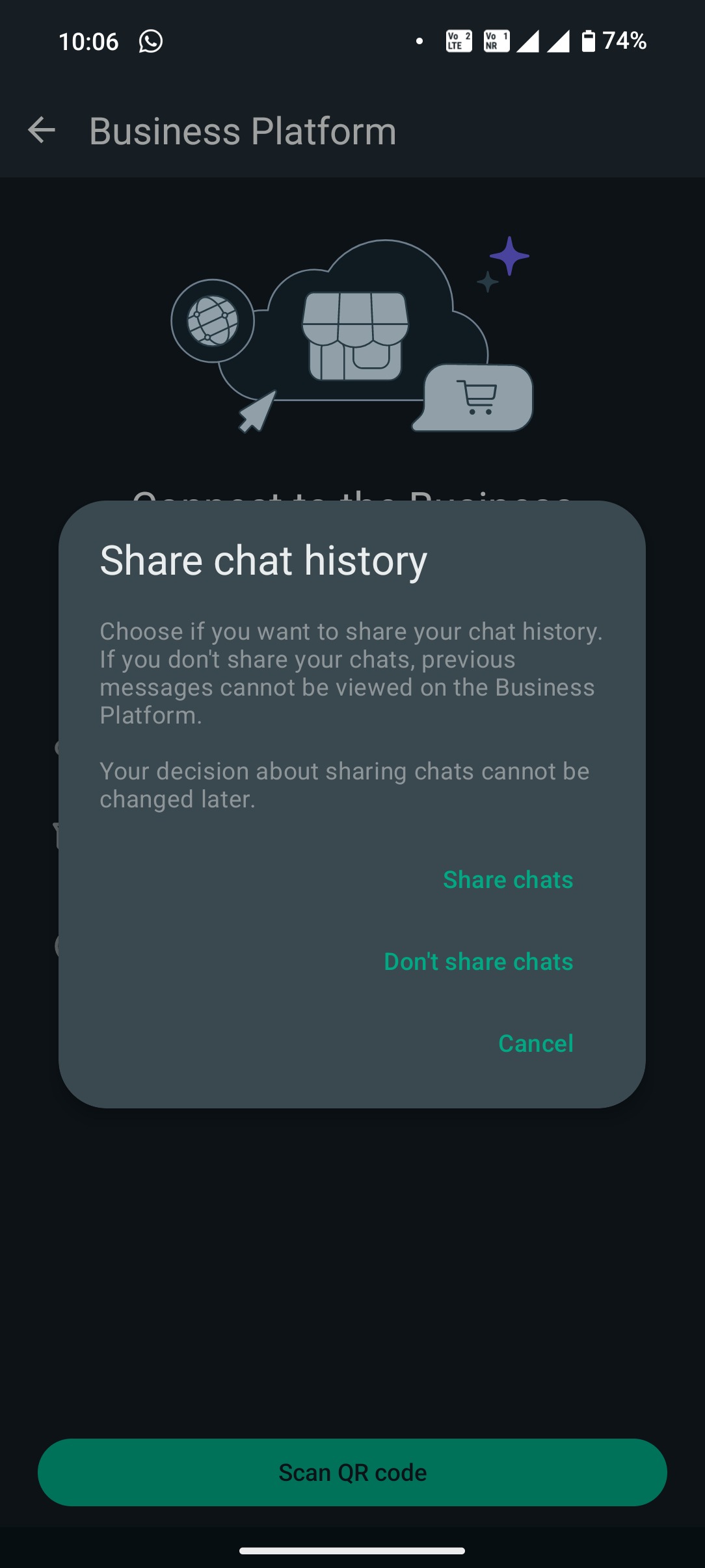
Share Chat History & Contacts
Your contacts and conversations will be securely synced with Kanamé.
10
Setup Complete
Your WhatsApp Business App is now successfully integrated with Kanamé.

11
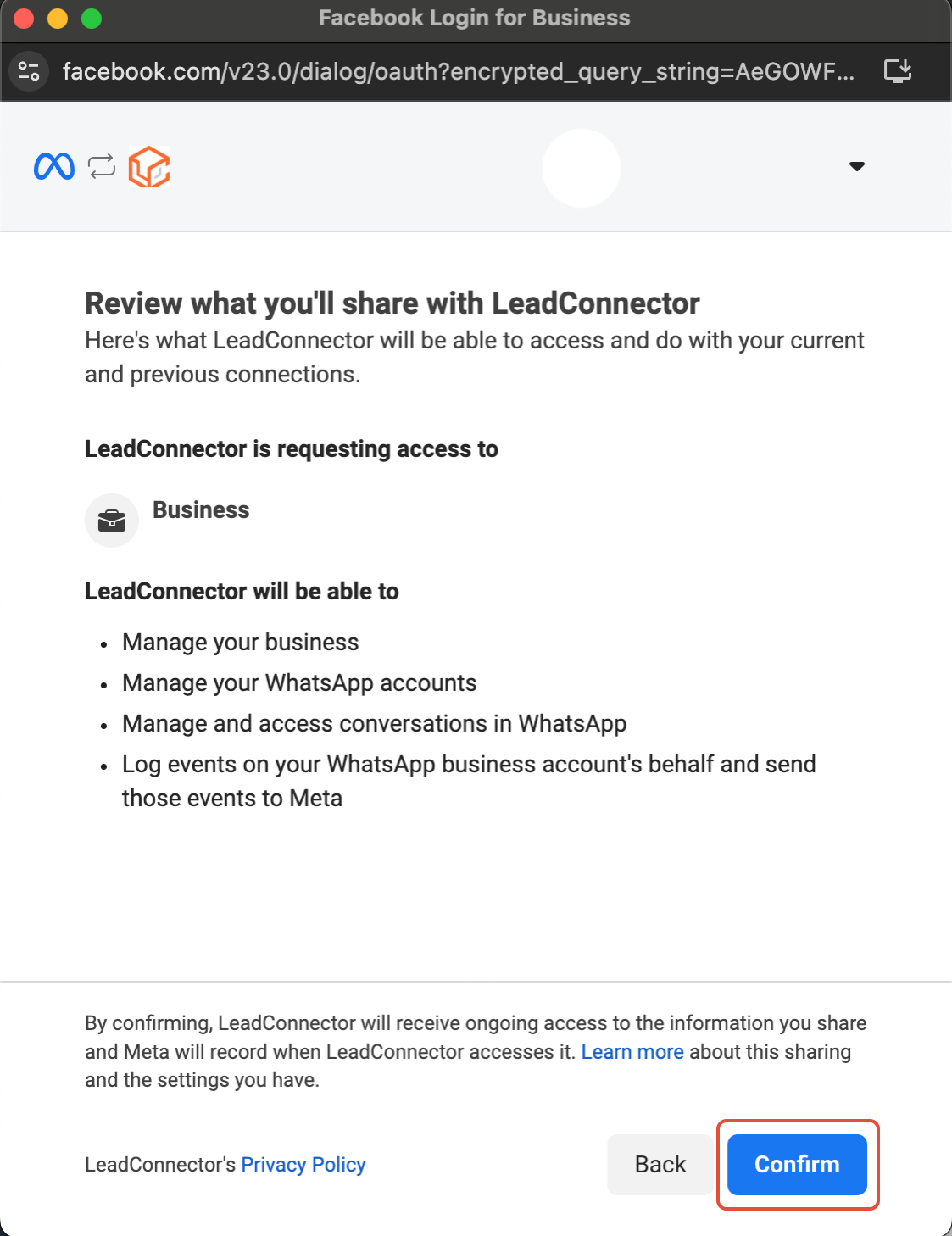
Review and Confirm
Check all entered details carefully, then click Confirm.
✓
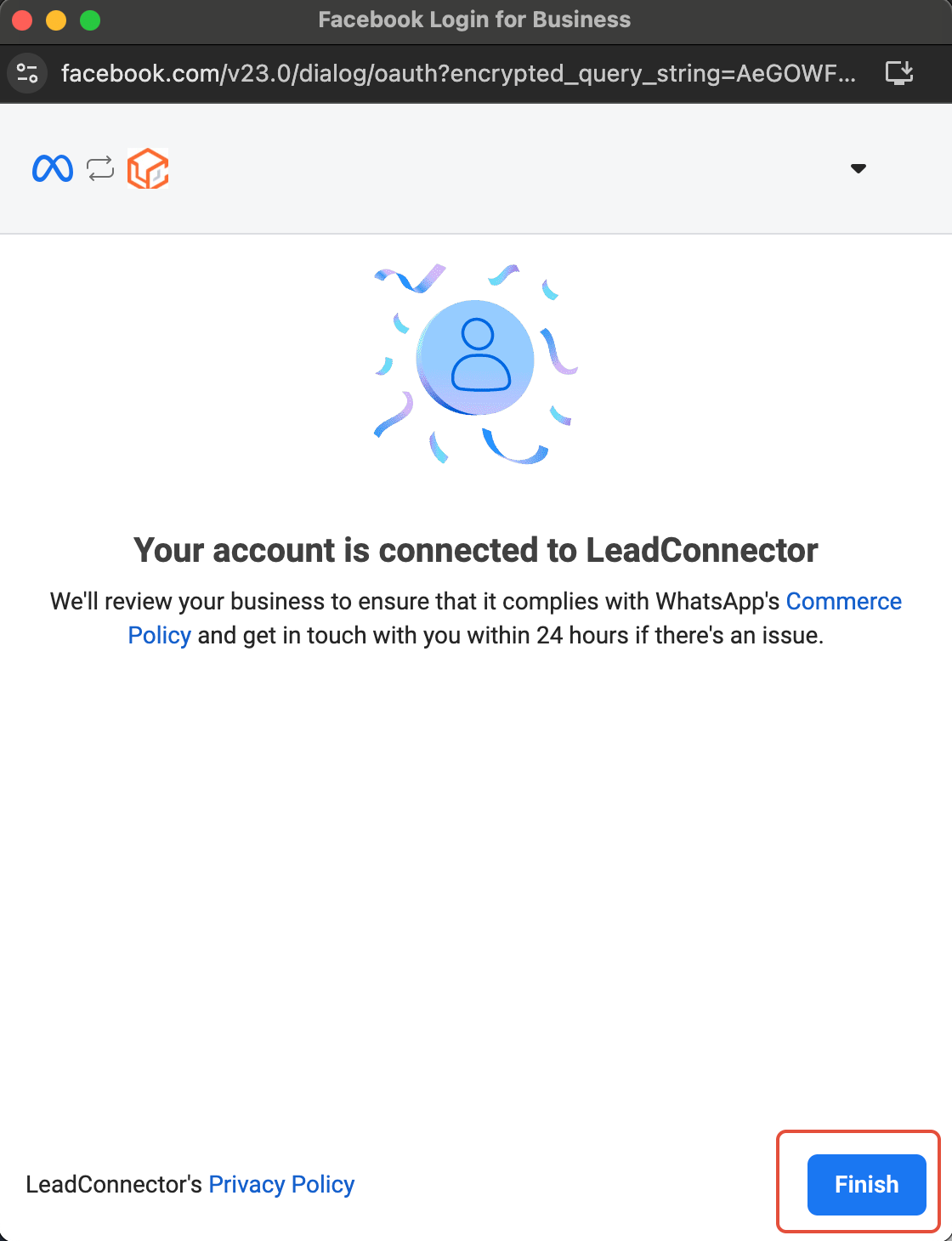
Integration Complete
Click Finish. Your WhatsApp Business App is fully integrated with Kanamé.
NOTE
- Sending template messages is not supported via the WhatsApp Business App — they can only be sent through the CRM.
- You will manage your WhatsApp profile from the WhatsApp Business App, not the CRM.
- You can only have a maximum of one phone number under Coexistence. Method 2 Connect a New WhatsApp Business Number
1
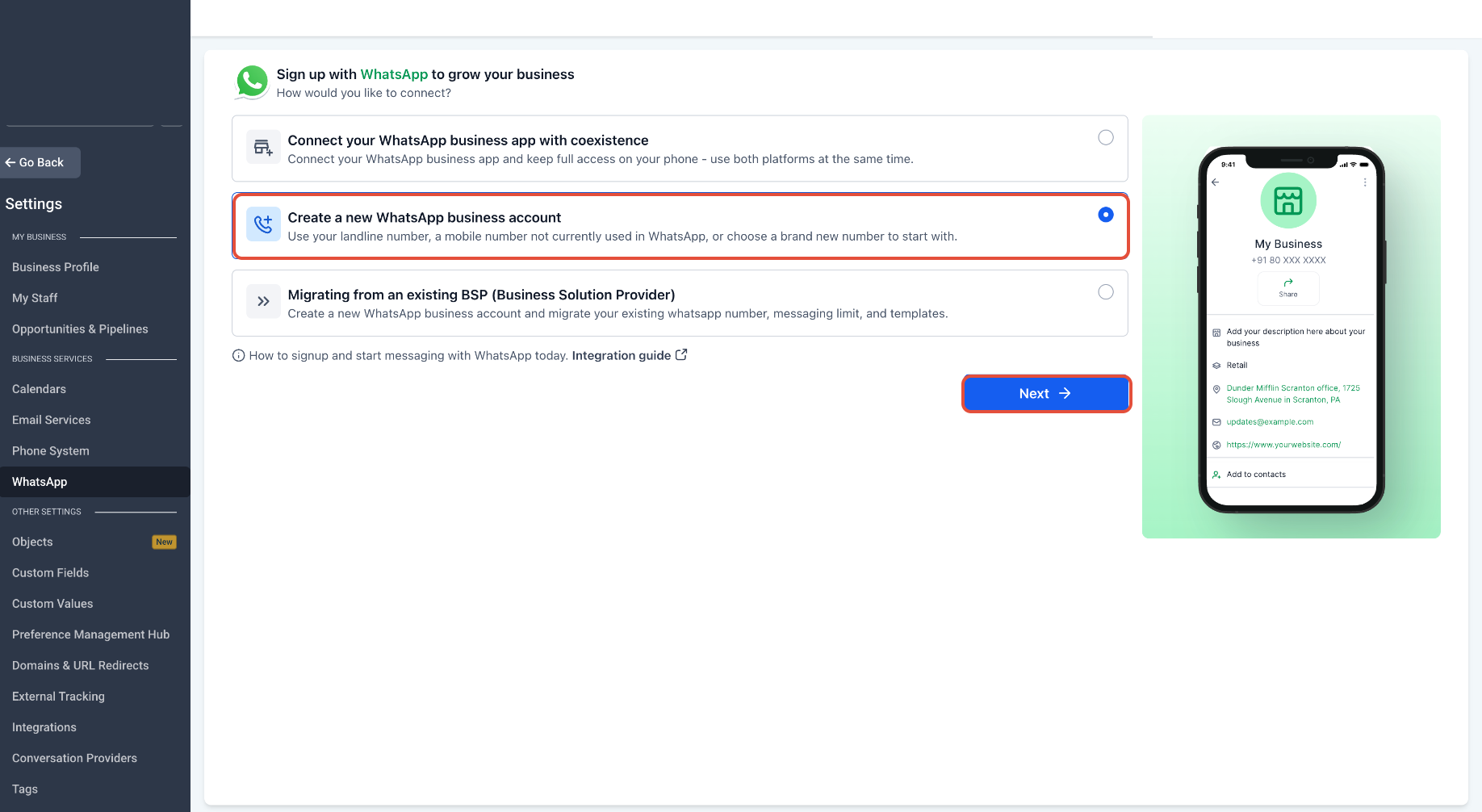
Start the Signup Process
Navigate to Settings > WhatsApp and click Create a new WhatsApp business account.
2
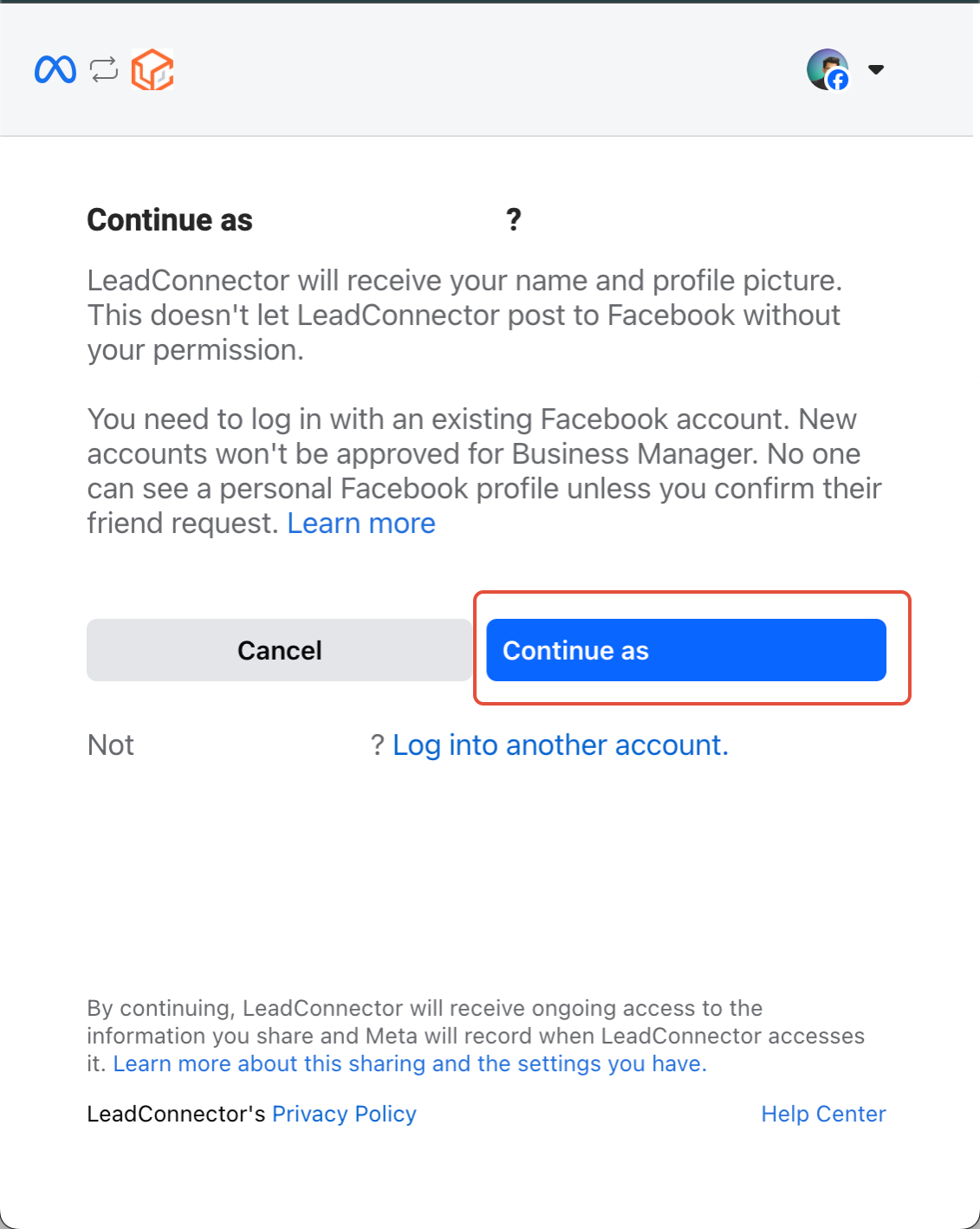
Continue with Facebook
Click Continue with Facebook and log in using the Facebook account associated with your business.
3
Begin Setup
Tap Continue to initiate the integration process.

4
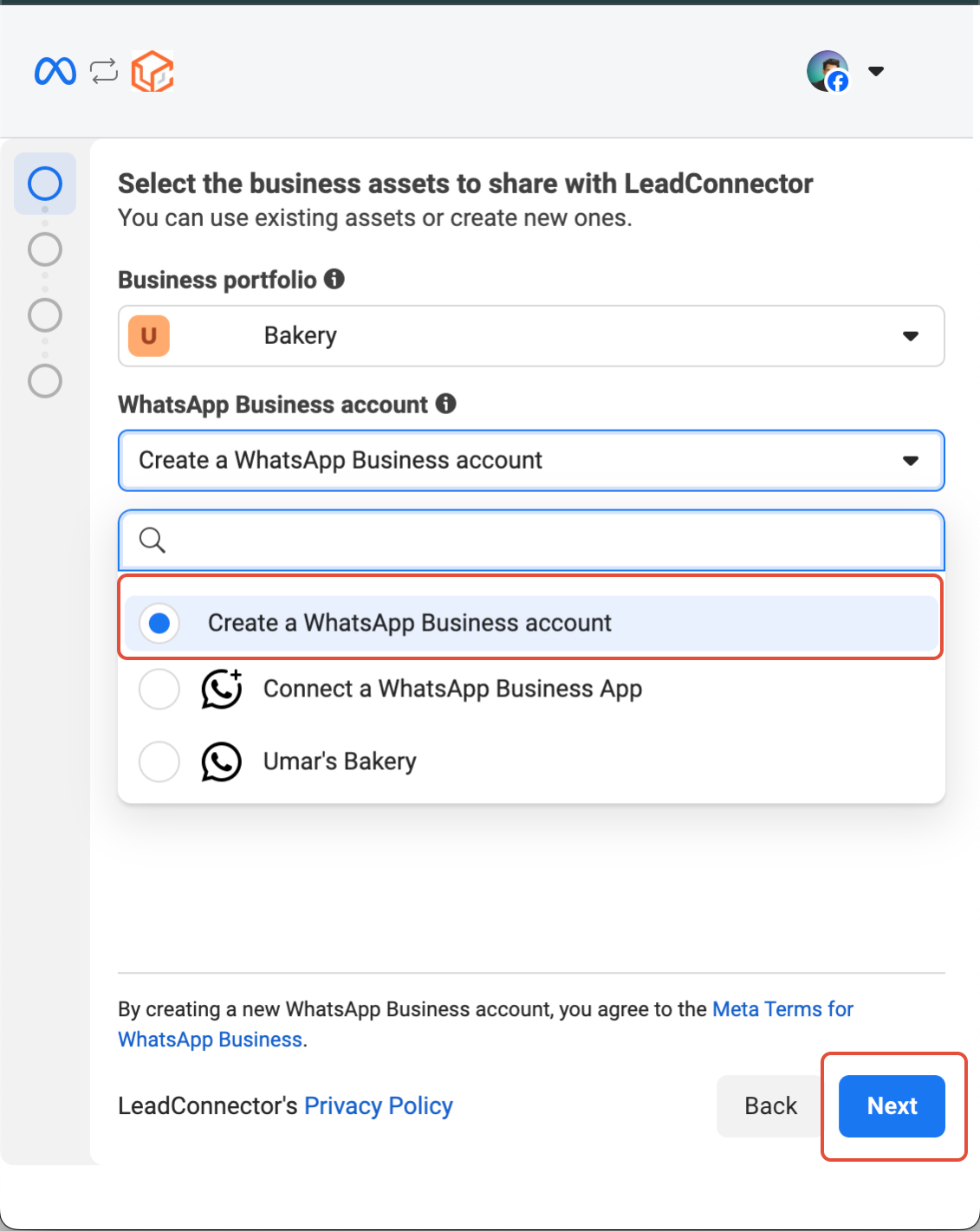
Enter Business Details
Fill in all required business information, select Create WhatsApp Business Account, then click Next.
5
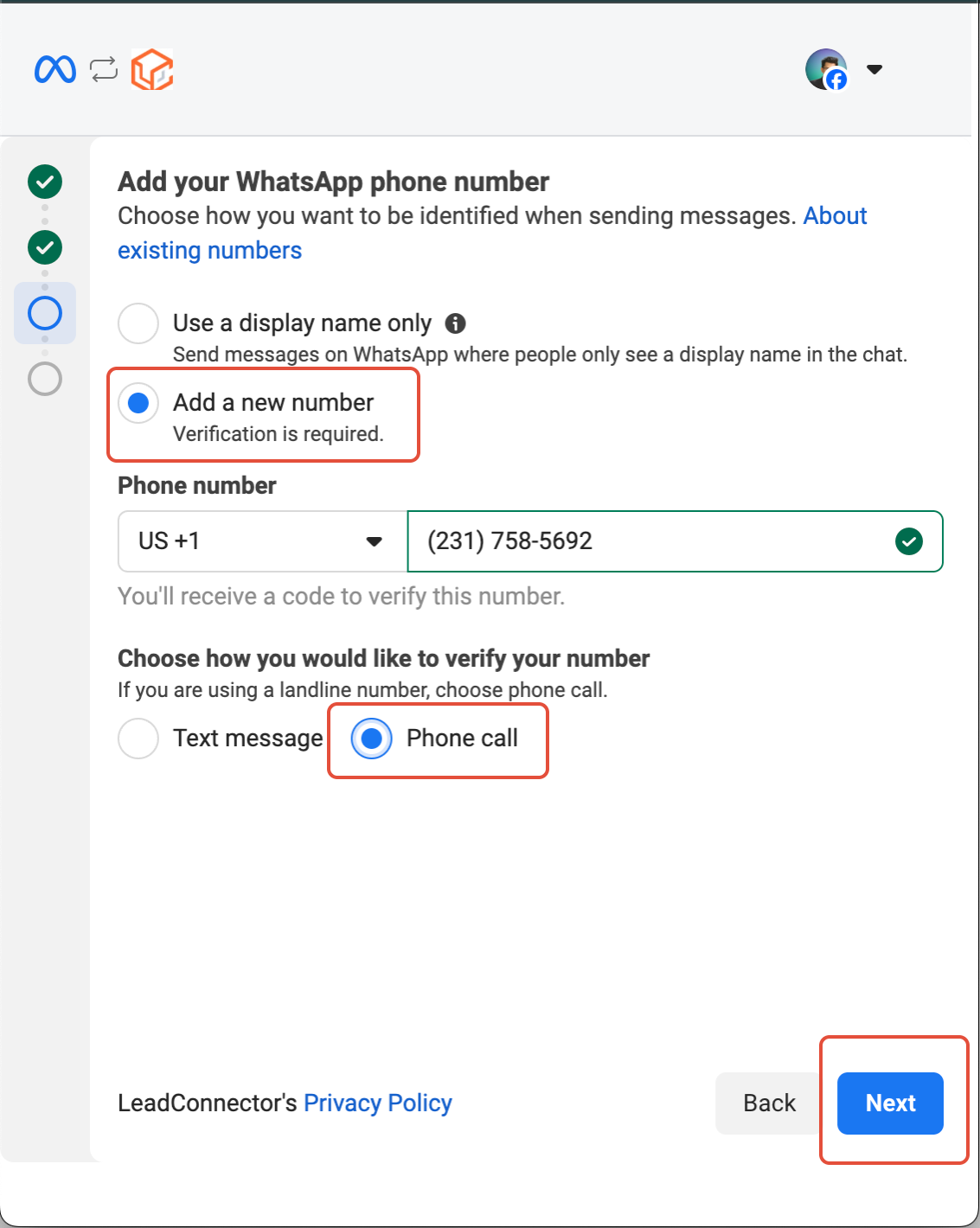
Add Your Phone Number
Enter the phone number you want to integrate. Make sure it’s active and accessible for verification.
6
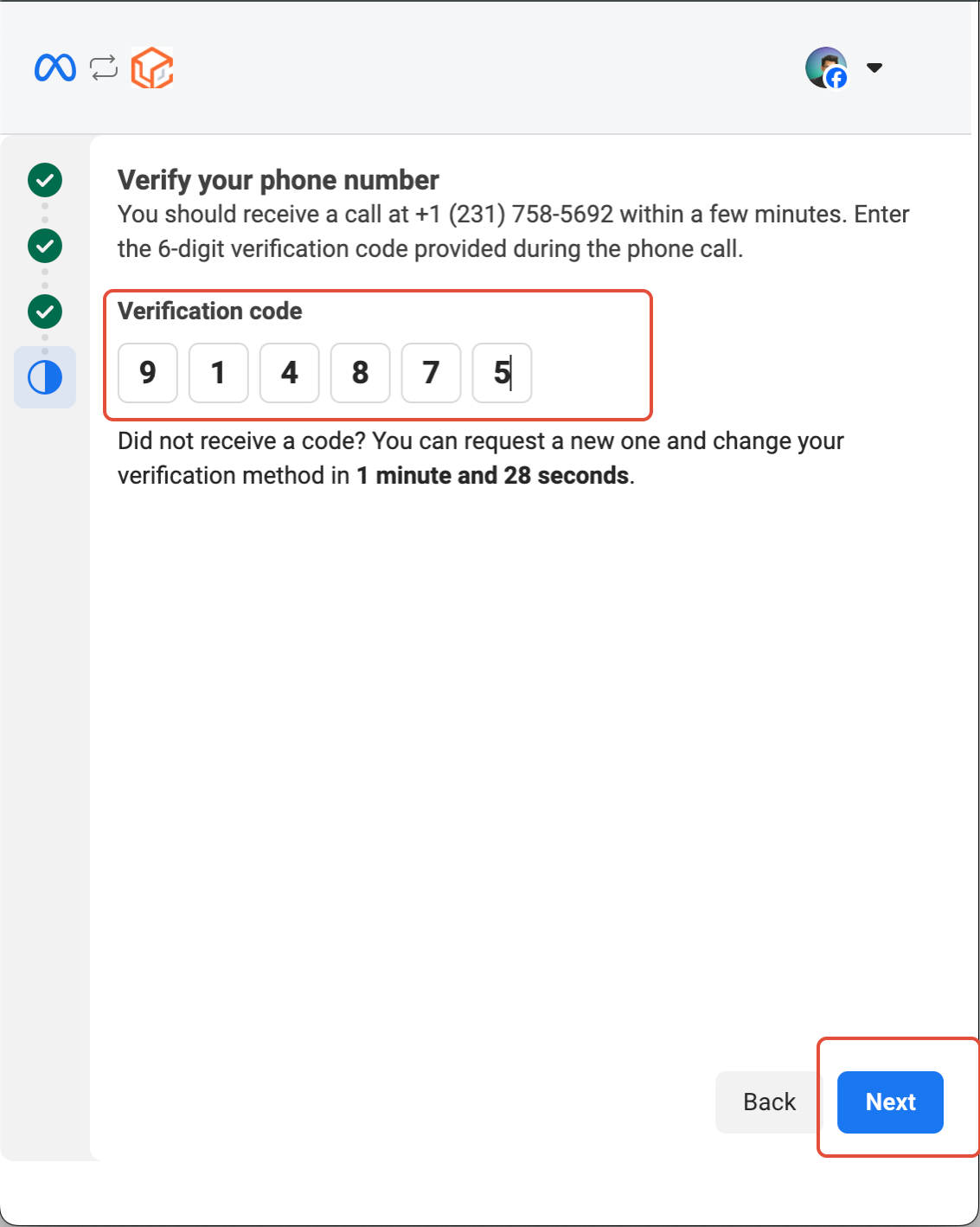
Verify via OTP
Enter the one-time password received by SMS or voice call, then click Next.
7
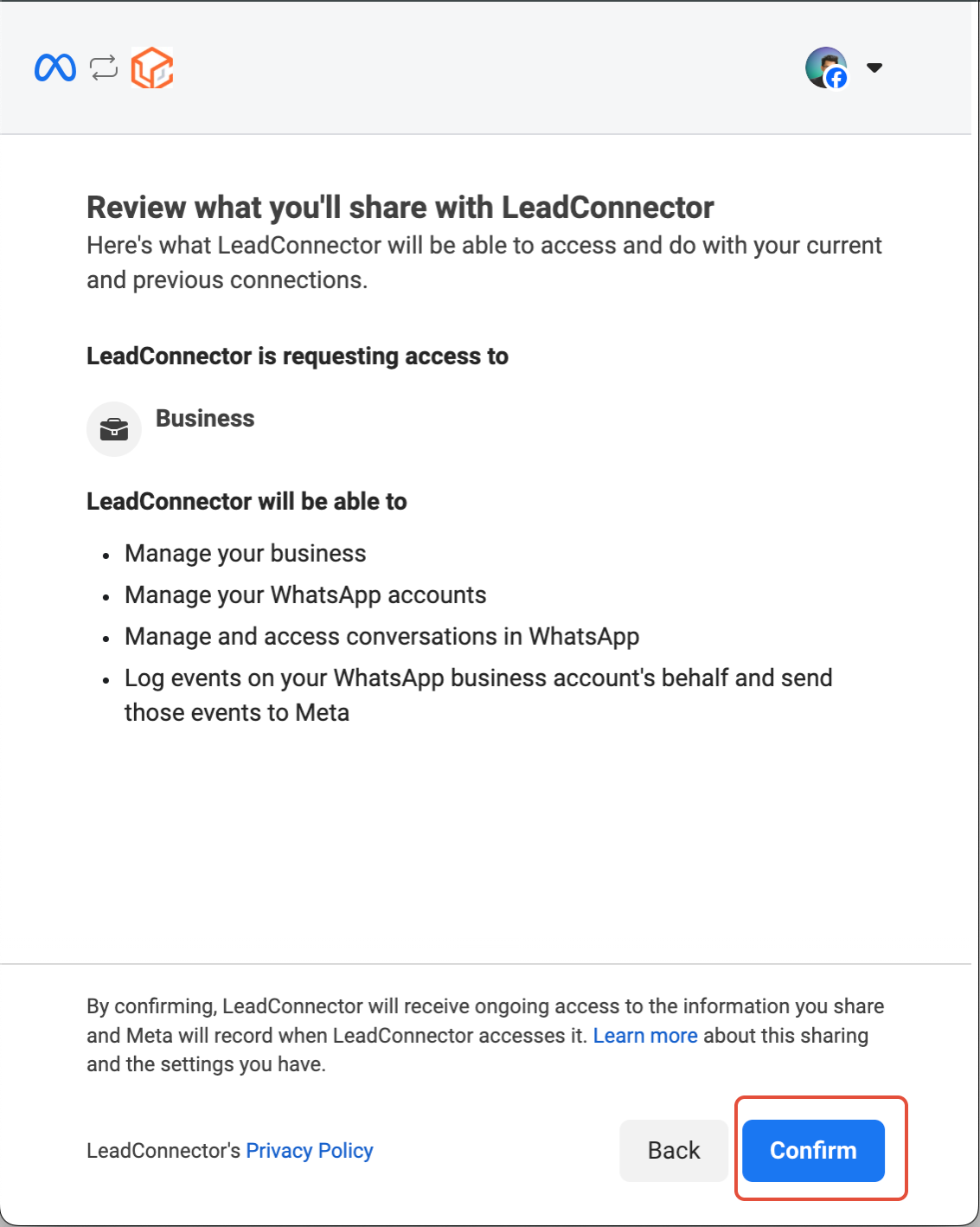
Review and Confirm
Check all entered details carefully, then click Confirm.
✓
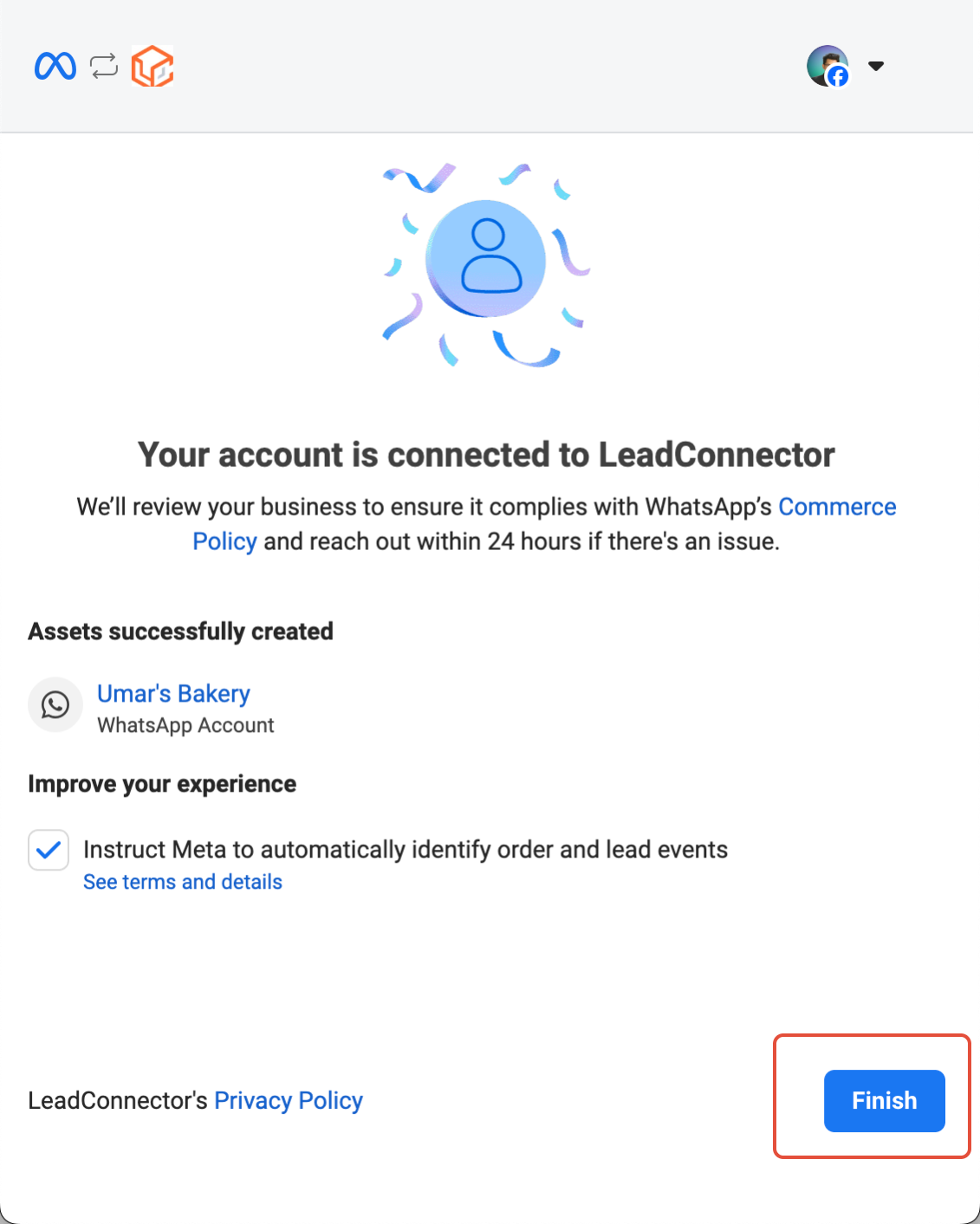
Integration Complete
Your WhatsApp Business Account is now successfully integrated and ready to use.
Method 3 Migrate from an Existing BSP
1
Start the Signup Process
Navigate to Settings > WhatsApp and click Migrating from an existing BSP (Business Solution Provider).