
A busy inbox is a good problem, but you still need to find the three conversations that matter this morning. Filters cut the list down, sorting puts the oldest first, and bulk actions clear what’s done.
Filter the list
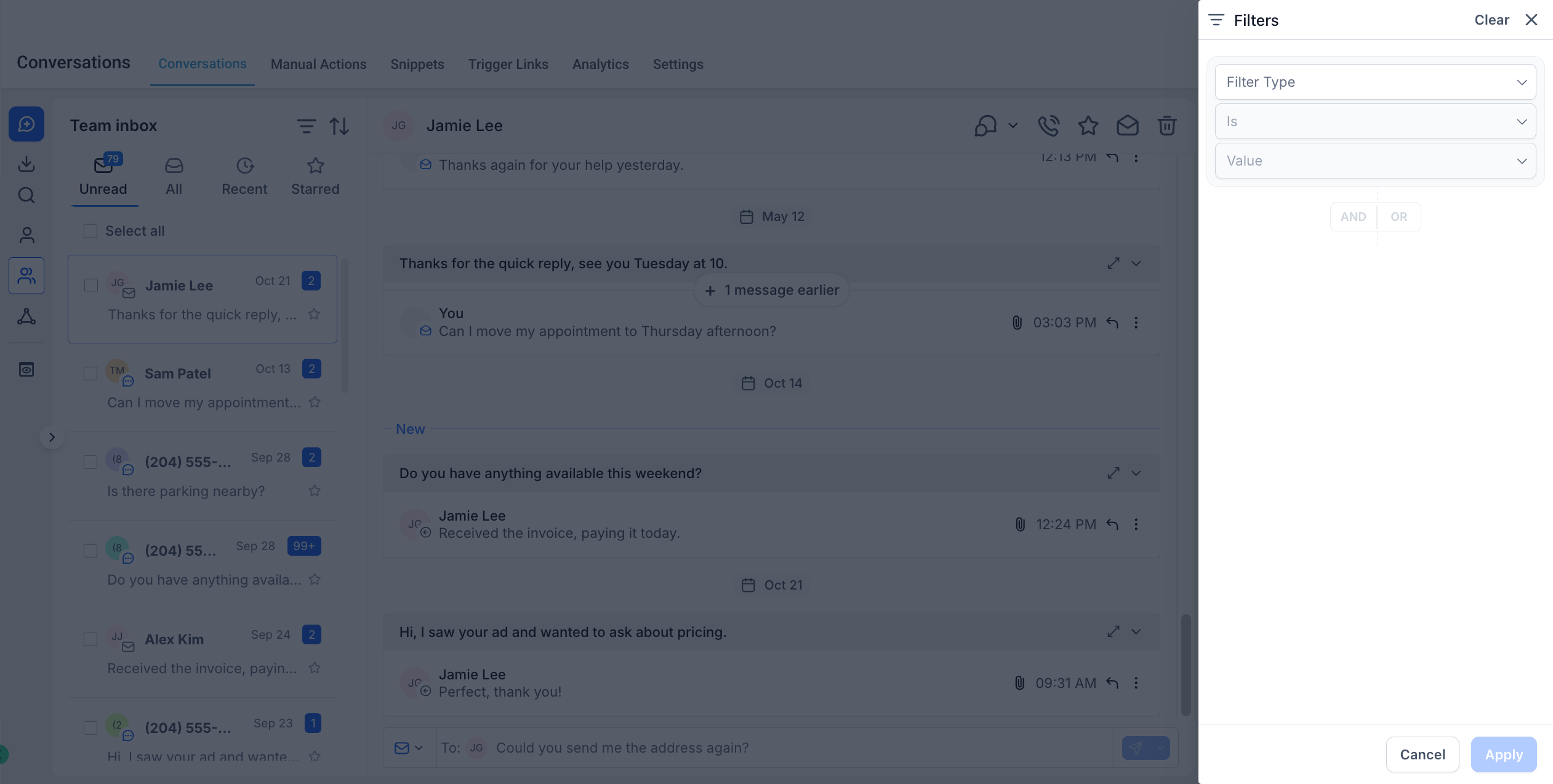
- Open Conversations in the left menu.
- Select the filter icon (the three lines) at the top of the list.
- Choose a Filter Type, such as the channel the last message came in on, who it’s assigned to, or whether it’s unread.
- Pick a value and select Apply. Add a second filter with AND to narrow further, or OR to widen. Select Clear to see everything again.
Sort the list
Select the sort icon (the two arrows) next to the filter to switch between newest first and oldest first. Oldest first is handy at the end of the day: it shows you who’s been waiting longest.
Star what matters
Select the star on any conversation to mark it. The Starred tab at the top of the list shows only those. Select the star again to remove it.
Clear a stack at once
- Tick the box next to each conversation, or Select all at the top of the list.
- Choose an action from the bar that appears: mark as read, mark as unread, star, unstar, or delete. You can act on up to 100 conversations at a time.
Delete removes the conversation for everyone: Deleting a conversation removes the message history from your account. If you just want it out of the way, mark it as read instead.
Where to go next
- Answer your messages in one inbox: the basics of reading and replying.
- Add a contact: add a note or tag so the conversation has context next time.
- Install the Lead Connector app: the same filters, on your phone.