
The Lead Connector app can take card payments in person. The customer taps a credit or debit card, or pays with Apple Pay or Google Pay, against the back of your phone. The payment shows up in your Kanamé account with all your other payments. It works well at an event door, a pop-up table or the front desk.
Check your phone a few days before
You can’t set Tap to Pay up at the door, so go through these a few days ahead.
- The Lead Connector app, signed in. If you don’t have it yet, install the Lead Connector app first.
- A phone that can take taps. An iPhone XS or newer on iOS 16 or later works, as long as it isn’t running a beta version of iOS. An Android phone works if it has NFC and runs Android 8 or later.
- Payments switched on for your login. If you don’t see the $ at the bottom of the app, ask us to switch on Payments for your user.
- Card payments connected to your account. We set this up with you. If the app says Stripe isn’t connected, contact us.
Turn on Tap to Pay
You only need to do this once on each phone.
- In the Lead Connector app, open the menu at the top left, then tap the gear icon.
- Turn on Tap to Pay on iPhone. Android phones don’t have this switch, so skip this step.
- Tap the $ at the bottom of the screen. When the app asks to use your location, choose Allow While Using App. Tap to Pay doesn’t work without it.
- The first time, your iPhone may ask you to agree to Apple’s Tap to Pay terms with your Apple ID. Once you agree, it won’t ask again.
Take a payment
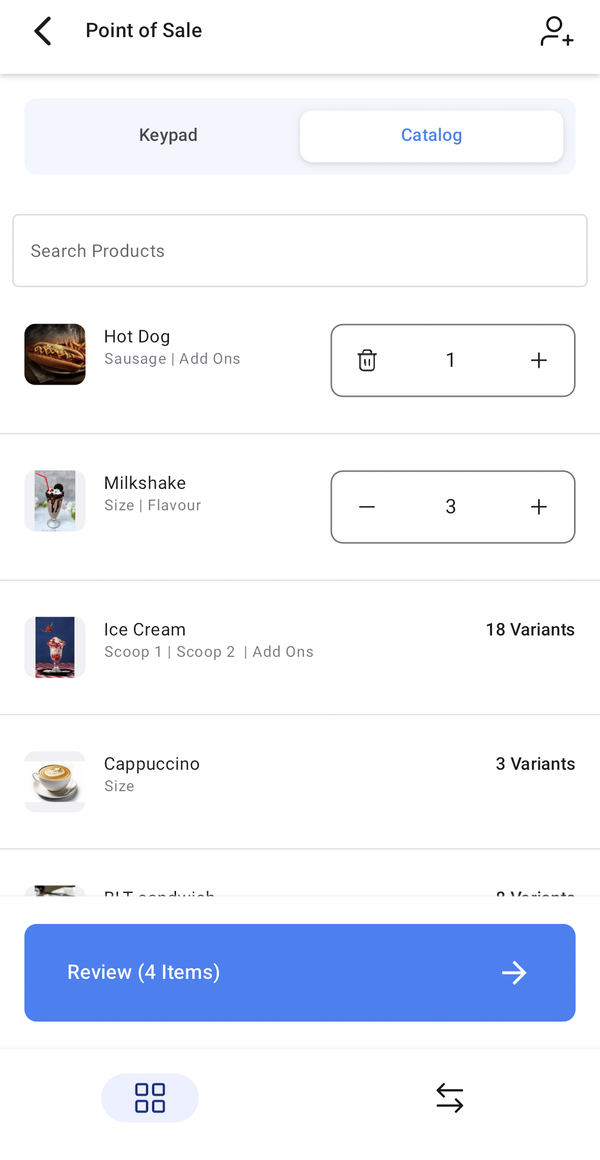
- Tap the $ at the bottom of the app to open Point of Sale.
- Enter the amount on the Keypad. If you’re selling something saved as a product, such as a ticket, pick it from Catalog instead.
- Tap Review.
- To put the payment on a customer’s record, tap Add Customer and choose them or add them. This step is optional, but it keeps their payment history in one place.
- Tap Choose Payment Instrument, then Tap to Pay on iPhone. On Android it’s called Tap to Pay.
- If a tip screen comes up, hand the phone to the customer to choose a tip or No tip.
- When the screen says Tap behind device, the customer holds their card, phone or watch flat against the back of your phone until it confirms.
- Wait for Payment Successful. That’s it, the payment has gone through.
Test it before the day: A few days before you need it, take a $1 payment from your own card. That way the first real tap isn’t the first one you’ve ever done. Afterwards, refund the $1 on your computer from Payments, then Transactions.
Take payment another way
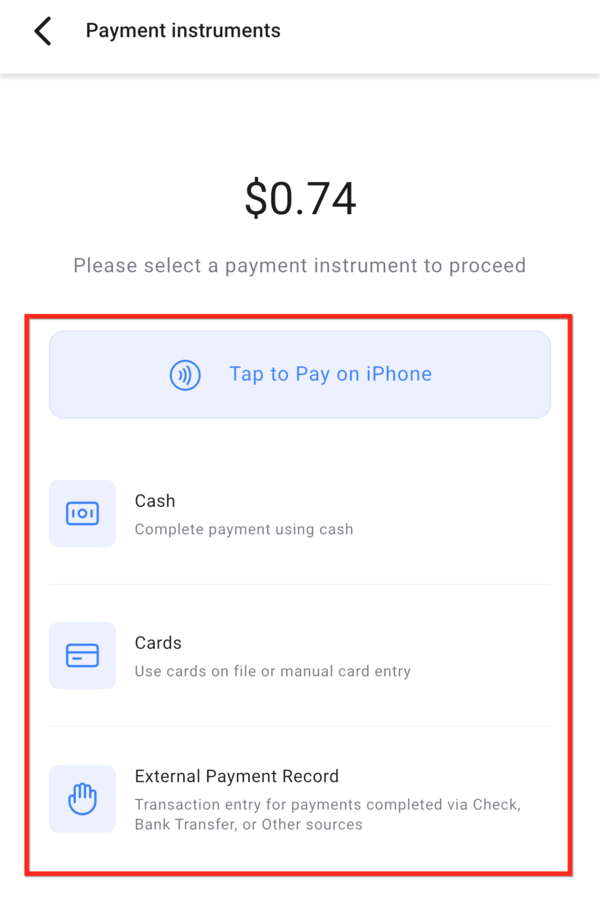
The payment screen has other options for when tapping isn’t right:
- Cash: records a cash payment, so your totals match what’s in the till.
- Cards: type in the card number, or charge a card the customer has saved with you.
- External Payment Record: records a cheque, an e-transfer or any other payment you took outside the app. If the customer would rather pay later, send them an invoice or a payment link.
Optional: collect on an invoice you’ve already sent
Have the customer in front of you when an invoice is due? Take the payment on the spot.
- Tap the $, then Active Transactions in the bar at the bottom. It lists your due and overdue invoices.
- Swipe left on the invoice, then tap Record Payment.
- Choose Tap to Pay on iPhone. The customer taps, and the invoice is marked paid.
Fix a payment that won’t go through
- Tap to Pay isn’t on the payment screen. Check that your phone is on the list above and that Tap to Pay is turned on under the gear icon. Then check that location is allowed: on your phone, open Settings, then Lead Connector, then Location. If it still isn’t there, contact us.
- The app says Stripe isn’t connected. Card payments aren’t connected to your account yet. Contact us and we’ll connect them.
- The tap doesn’t register. The card goes on the back of the phone, near the top, not on the screen. Have the customer hold it still for a couple of seconds. If taps keep failing, take off a thick case.
- A card is declined. Ask the customer to try their phone or watch instead, or a different card.
Where to go next
- Install the Lead Connector app: get the app on your phone and find your way around it.
- Send an invoice: for a customer who wants to pay later, or who needs a proper invoice.
- Get paid with a payment link: one link for a set price, which you can text or email to anyone.