
People book themselves through your booking link, but plenty of appointments start with a phone call or a text. Here’s how to put one in the calendar yourself, and what to do when it moves.
Book an appointment
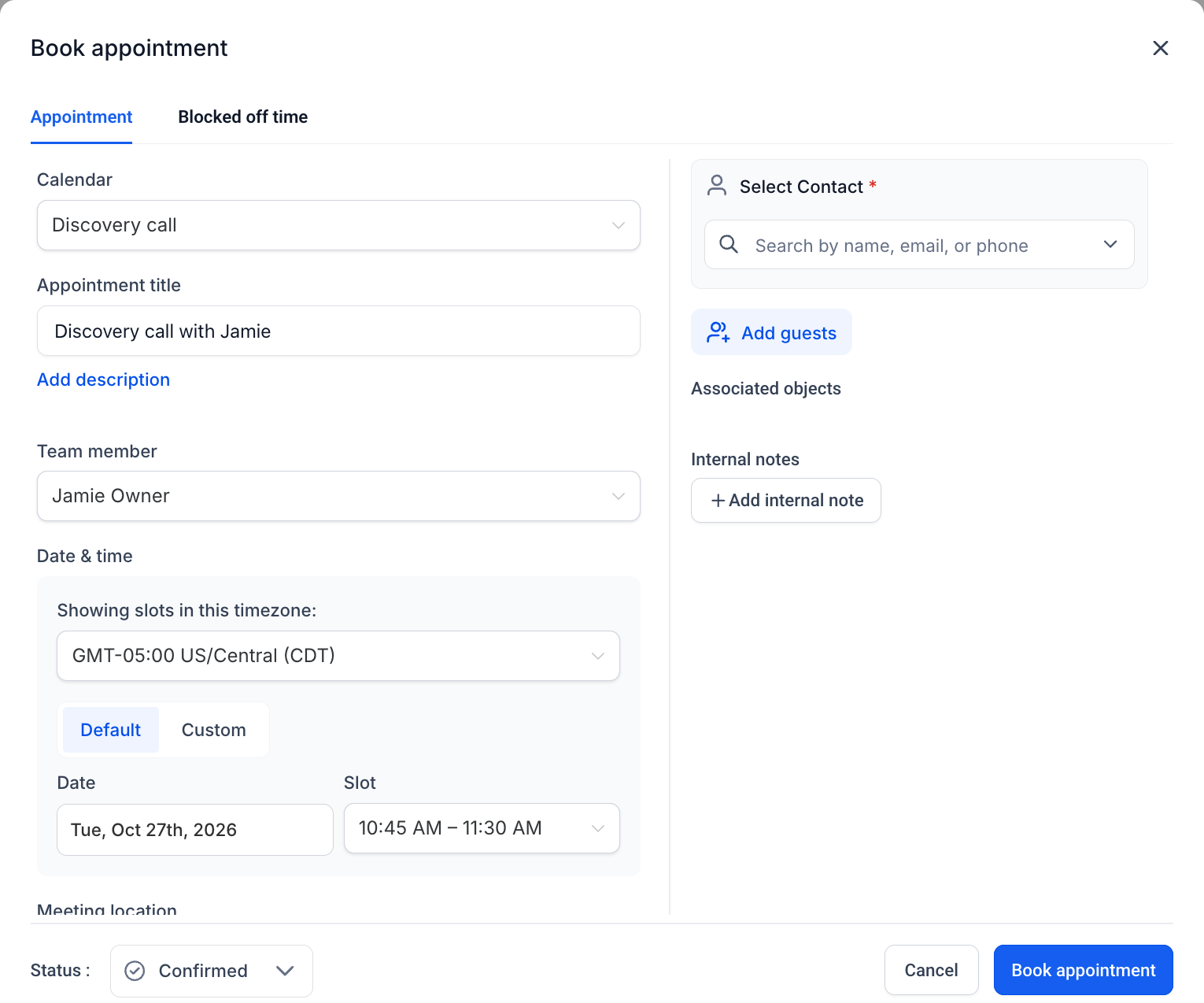
- Select Calendars in the left menu. You land on the calendar view.
- Select New at the top right, then stay on the Appointment tab.
- Choose the Calendar the booking belongs to, such as your consultation calendar.
- Give it a title, or keep the one Kanamé fills in.
- Check the Team member, then pick the Date and a Slot. Only free slots are offered. Need a time outside your hours? Switch from Default to Custom and type it.
- Under Select Contact, search for the person by name, phone or email. Not in your contacts yet? Type their details and they’re added.
- Select Book appointment. The person gets that calendar’s confirmation, with the reminders before it, and the booking appears on your connected calendar.
Blocking off time: Holiday, lunch, a doctor’s appointment: select New, then the Blocked off time tab, and pick the hours. Nobody can book over them.
Move an appointment
- On the calendar, select the appointment.
- Select the pencil icon to edit it.
- Choose the new date and slot, and save. The person gets an updated confirmation with the new time.
Cancel an appointment
- On the calendar, select the appointment.
- Change Status from Confirmed to Cancelled. Cancelling keeps a record of the booking in the person’s history, which is better than deleting it. If the person told you they can’t make it, cancel; if they simply didn’t turn up, mark it No show instead so you can see the pattern later.
See the list instead of the grid
Select Appointment list view at the top of the Calendars page for a plain list of upcoming bookings, who they’re with and their status. It’s the quickest way to check tomorrow.
Where to go next
- Book someone in every week: one booking that repeats.
- Connect your Google or Outlook calendar: so bookings land on your own calendar too.
- Install the Lead Connector app: book from your phone.