
By the end of this, your Google, Outlook or iCloud calendar is connected to Kanamé. People booking with you only see times you’re actually free, and each new booking is added to your own calendar. Each person on your team connects their own calendar from their own login.
Open your calendar connections
Connections belong to each person, so start from your own login.
- In Kanamé, open Settings at the bottom of the left menu.
- Under Business Services, select Calendars.
- Select the Connections tab at the top of the page.
- Under My staff, check that your own name is selected.
- On the Calendars tab, select + Add new.
Connect your calendar
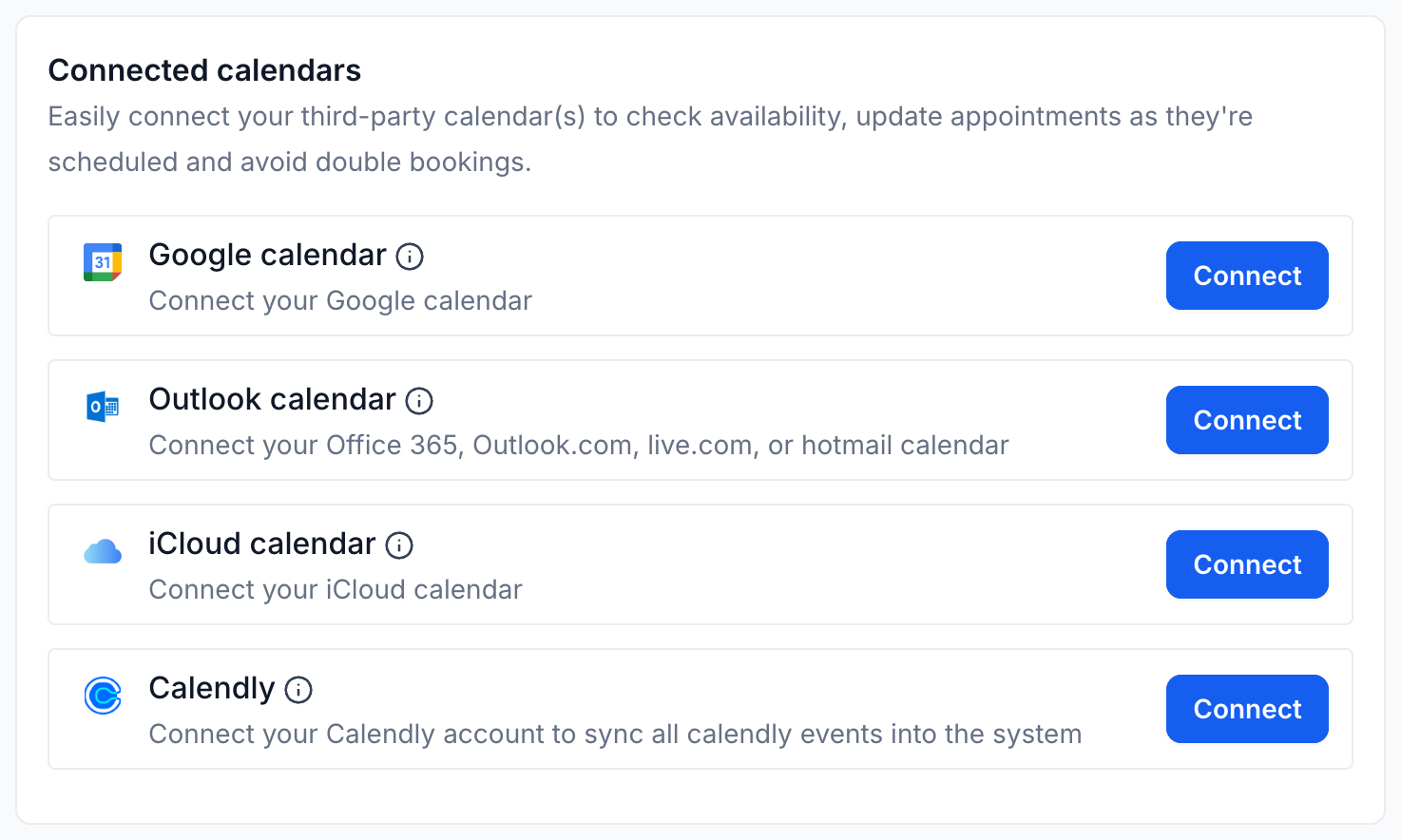
- Beside Google calendar, select Connect. If your calendar is Office 365, Outlook.com, Live or Hotmail, use Outlook calendar instead. iCloud is in the same list.
- Sign in to the account that holds your calendar.
- Approve every permission on the screen that follows, including the one to see and edit your calendar.
- Back in Kanamé, your account now shows under Connected calendars.
Approve every permission: If you untick the permission to edit your calendar, Kanamé can still see when you’re busy, but new bookings won’t be added to your calendar. If that happens, remove the connection and connect again, approving everything.
Choose where bookings go
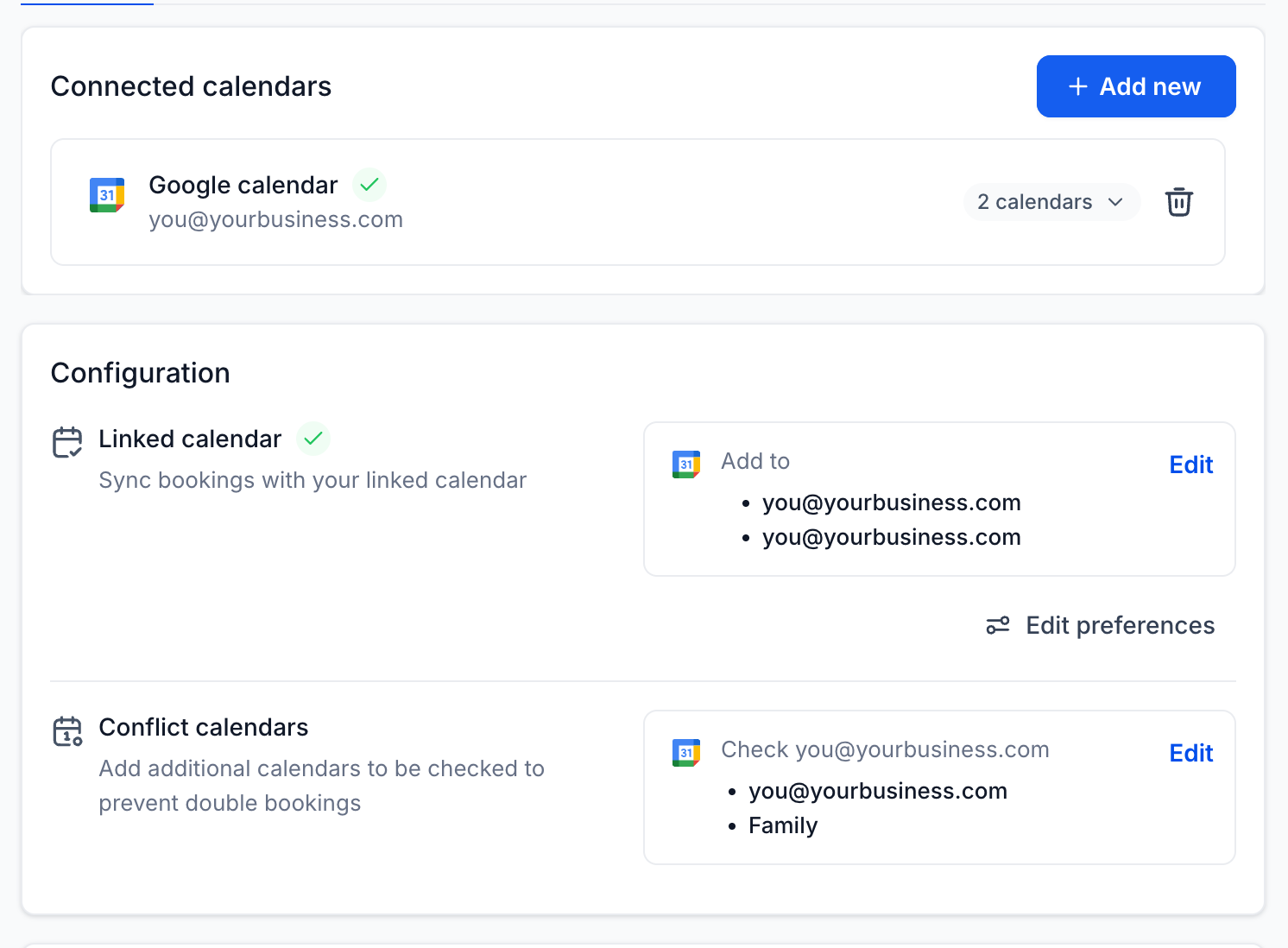
Under Configuration, two settings decide how your calendar and Kanamé work together.
- Next to Linked calendar, select Edit and pick the calendar new bookings should be added to.
- Next to Conflict calendars, select Edit and choose any other calendars that should block out busy time, such as a family calendar, so nobody can book over them.
- Save your choices. Once that’s saved, your booking calendars only offer the times you’re free, and new bookings show up in your conversations and on your phone through the mobile app.
Optional: Add a video link to every booking
- On the same Connections page, find Video conferencing.
- Select Connect beside Google Meet, Zoom or Microsoft Teams. Each booking then gets its own meeting link. Google Meet needs your Google calendar connected first.
Optional: Keep your private events private
Under Private mode for synced events, Hide event details is on by default. Your teammates see that you’re busy, but not what the event is. Leave it on unless your team needs to see the details.
Where to go next
- How to set up recurring appointments: book someone into the same slot every week in one go.
- Sync your Gmail or Outlook email: bring your email into the same inbox as your calls and texts.
- How to set up and use the mobile app: see new bookings and reply to people from your phone.