
Two-way email sync mirrors every message between Kanamé and your Gmail or Outlook inbox so all your conversations stay in one place. This guide covers connecting an account, the BCC sync option, and managing the connection.
Steps to connect
Gmail Two-Way Sync:
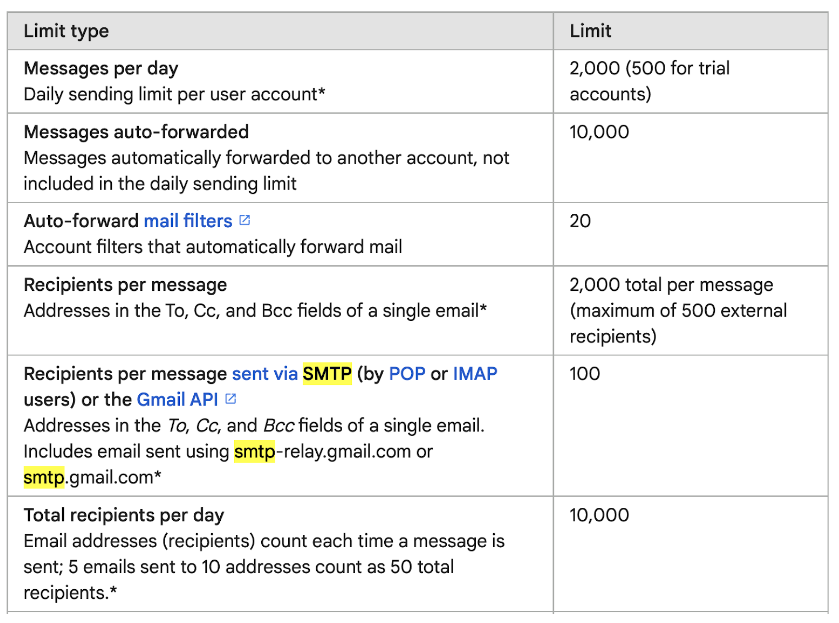
Google Rate Limits
How does the Gmail 2-way sync work between the CRM and your email account?
Outlook Two-Way Sync:
How does the Outlook 2-way sync work between the CRM and your email account?
Other functionalities for both Outlook and Gmail Two-Way Sync
Update Email:
Disconnect Email:
BCC Address
Does Two-way sync only work with individual emails or bulk emails and workflows?
FAQs (Gmail only)
What happens to emails received from existing contacts?
Will removing a synced account delete existing emails?
Do new emails get synced after an account is removed?
Will all my existing contacts in Gmail be synced with the CRM?
What happens when a new email is received from a contact?
What happens to sent emails from the CRM or Gmail?
How are cc/bcc recipients handled in the sync?
What if a contact emails someone else but includes the CRM user?
How is the conversation thread managed when multiple recipients are involved?
What if the same contact exists in multiple locations for the same synced email address?
What is Auto Bcc Sync, and how does it work?
How is the secure connection handled if Gmail login credentials change?
What happens when an email is forwarded from Gmail?
What if there are duplicate emails with multiple contacts?
What is Email Two way sync?
Users can connect their personal Gmail or Outlook email accounts and sync outgoing & incoming emails between the CRM and their personal Gmail or Outlook accounts. Users can use their email accounts to send, receive & track emails.The sync will be established between both platforms in different circumstances.
Outlook:
When an email thread is initiated from the CRM (first outbound message). All the subsequent emails in the thread will sync between both platforms. This feature is a user-level setting and does not impact other users in the account.
Gmail:
There are two cases of how the sync can be established.
- You can email a contact from the CRM to initiate the sync between both platforms.2. Gmail Sync also works if a contact already saved in the CRM sends an email to the User (who has Gmail Two Way sync integrated) on their Gmail Email address. The email would sync into the conversations tab. The contact also needs to be assigned to the user beforehand.
Please note
If the user is added to multiple sub accounts, and has integrated the same Gmail account for Gmail Two way sync in all those accounts, the email from the contact will go to the conversations tab of all those sub accounts, but we will only retain the instance of that contact in that sub account to which the user replies to. Sync will be broken for all other instances.The additional filter of user being assigned to the existing contact also makes sure that the conversation will not go to sub accounts that the contact does not belong to.
Steps to connect
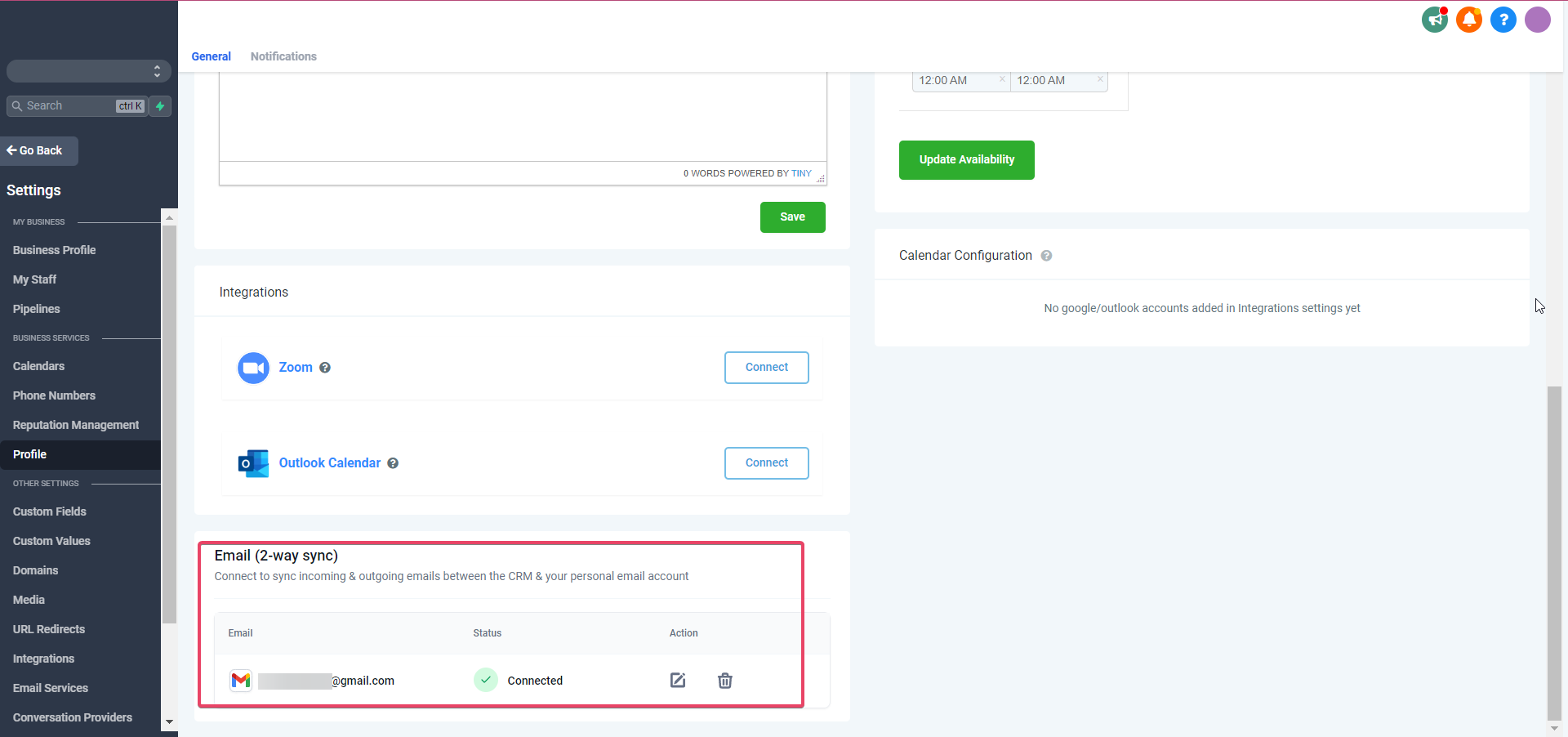
Please go to the accounts Settings page. Go to the Profile tab and then the General tab and scroll down to the section Email (2-way sync)
Please Note:
You will only see the Profile tab if you are added to the sub account for which you are viewing at that time.
Gmail Two-Way Sync:
Over there, if you want to use Gmail Two Way Sync, please select Gmail two sync and hit Connect.
It will then prompt you to choose one of the available Gmail Accounts in that browser or ask you to connect a Gmail account; select the one you need; connecting a new account will require you to enter that account’s credentials in the popup.
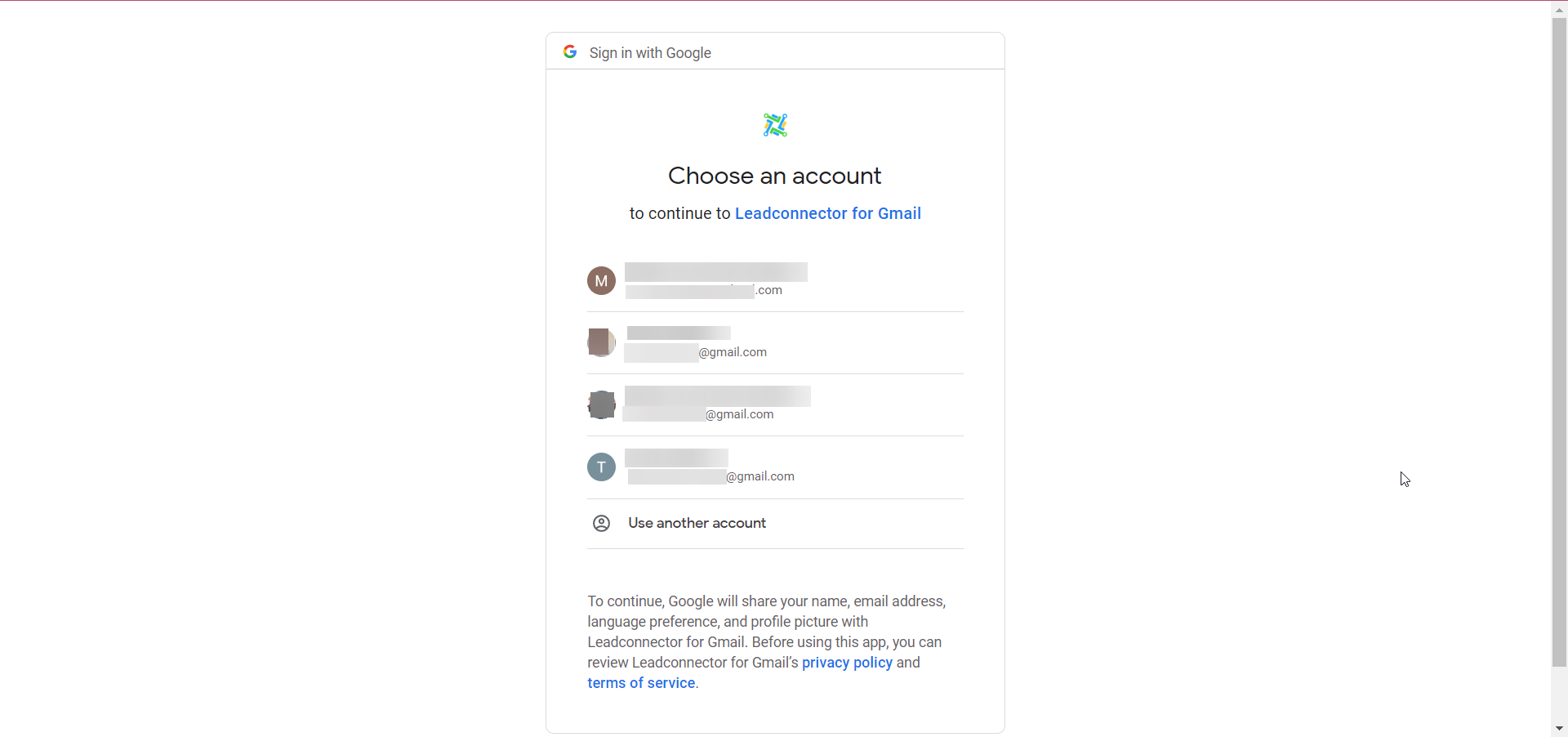
Connecting it will then ask you about which permissions you are allowing Kanamé to have on your Gmail account; make sure to allow all and then hit enable continue**:**
Once you hit, Continue, you will see your desired Gmail account connected in the Email Two Way sync tab:
Google Rate Limits
How does the Gmail 2-way sync work between the CRM and your email account?
There are two cases of how the sync can be established.
- You can email a contact from the CRM to initiate the sync between both platforms.2. Gmail Sync also works if a contact already saved in the CRM sends an email to the User (who has Gmail Two Way sync integrated) on their Gmail Email address. The email would sync into the conversations tab. The contact also needs to be assigned to the user beforehand.
Please note
If the user is added to multiple sub accounts, and has integrated the same Gmail account for Gmail Two way sync in all those accounts, the email from the contact will go to the conversations tab of all those sub accounts, but we will only retain the instance of that contact in that sub account to which the user replies to. Sync will be broken for all other instances.The additional filter of user being assigned to the existing contact also makes sure that the conversation will not go to sub accounts that the contact does not belong to.
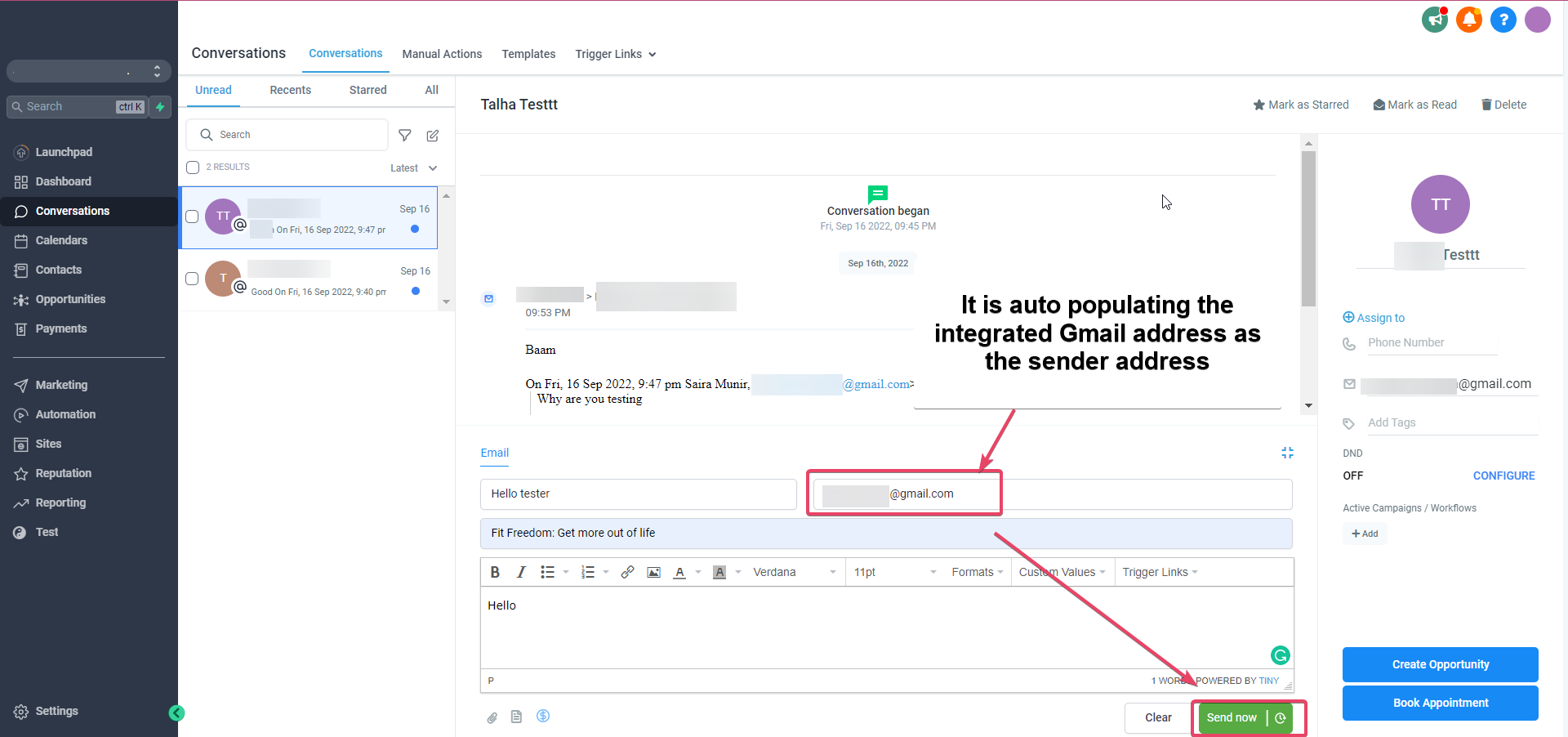
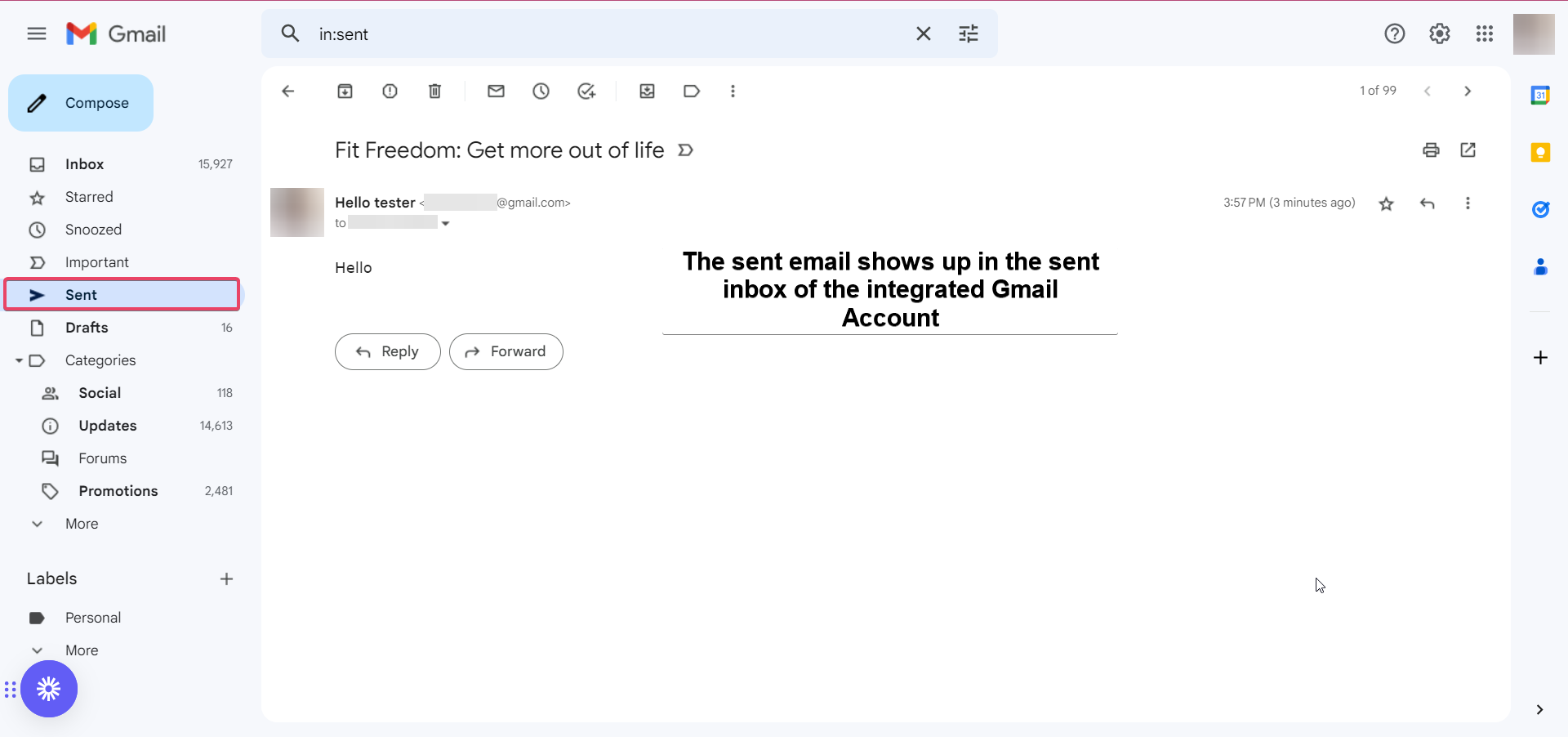
The sent email will show up in the sent inbox of the integrated Gmail account:
Please Note:
Gmail supports only ~500 emails per day and emails beyond that will be unsuccessful.
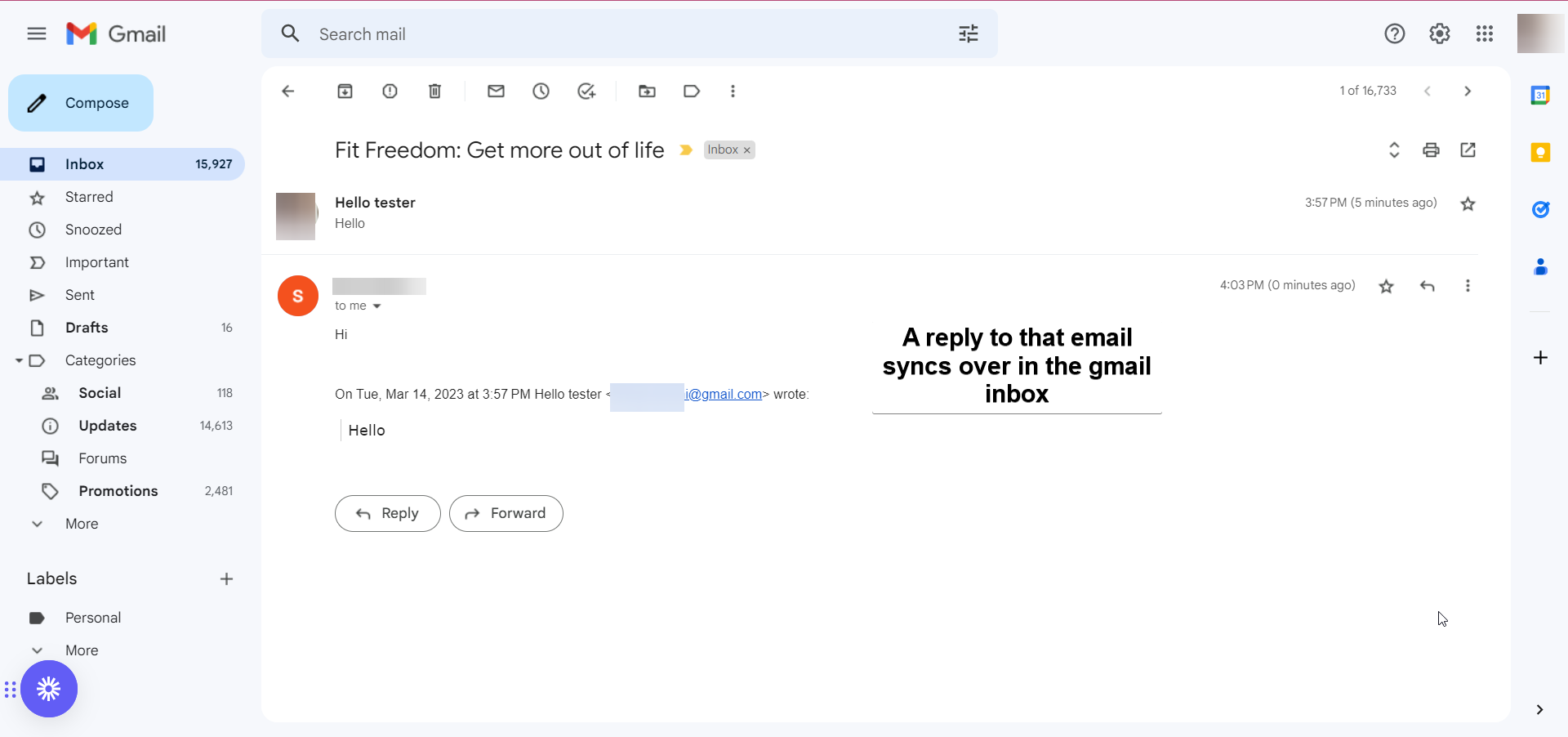
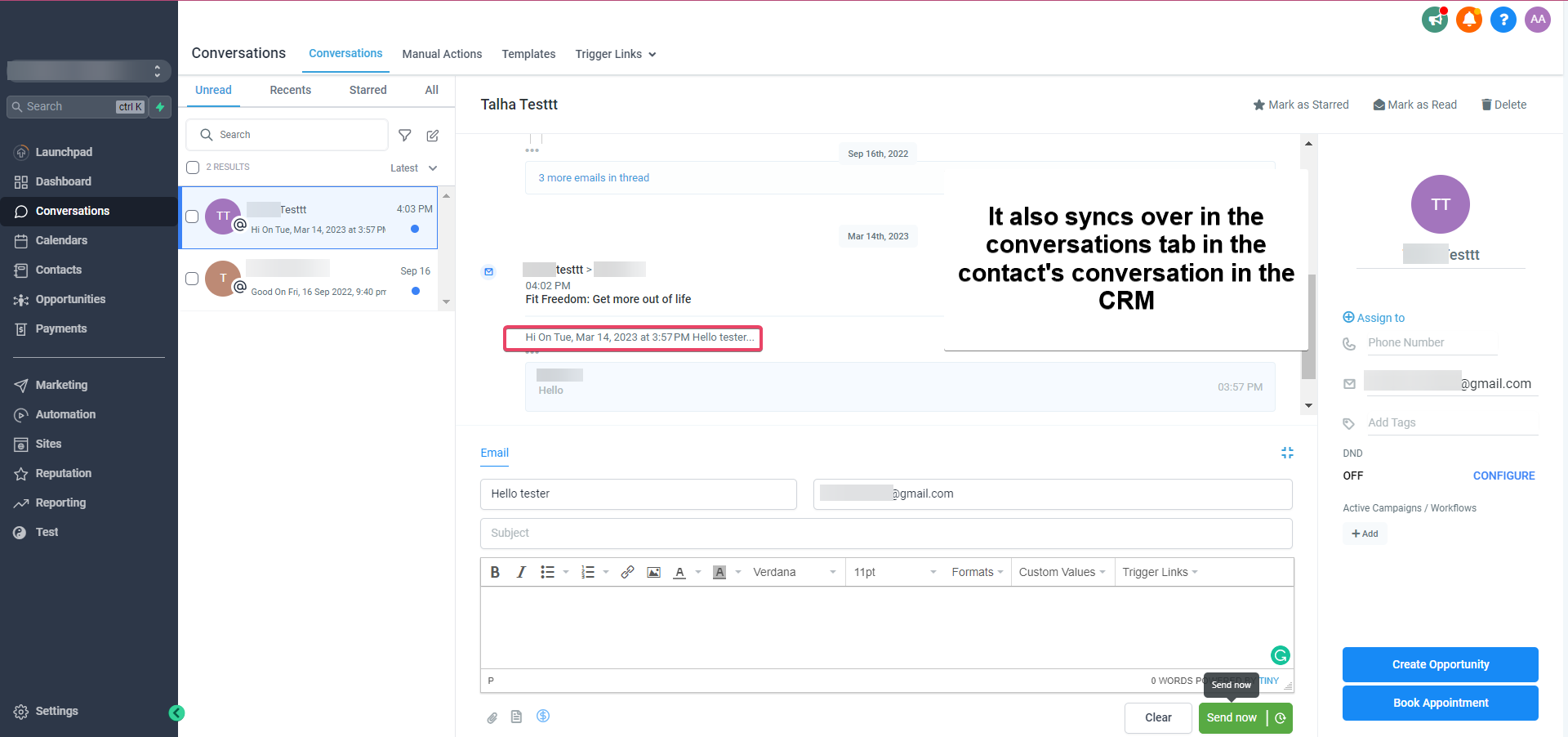
All subsequent messages in the email thread will be in sync. Outbound emails from your email will reflect in the CRM and vice versa.
Please Note:
The supported attachment size limit for Gmail Two way sync is 25 MB.
Outlook Two-Way Sync:
If you want to use Outlook Two Way sync, Select Outlook under Email (2-way sync) as your email provider & click on Connect.
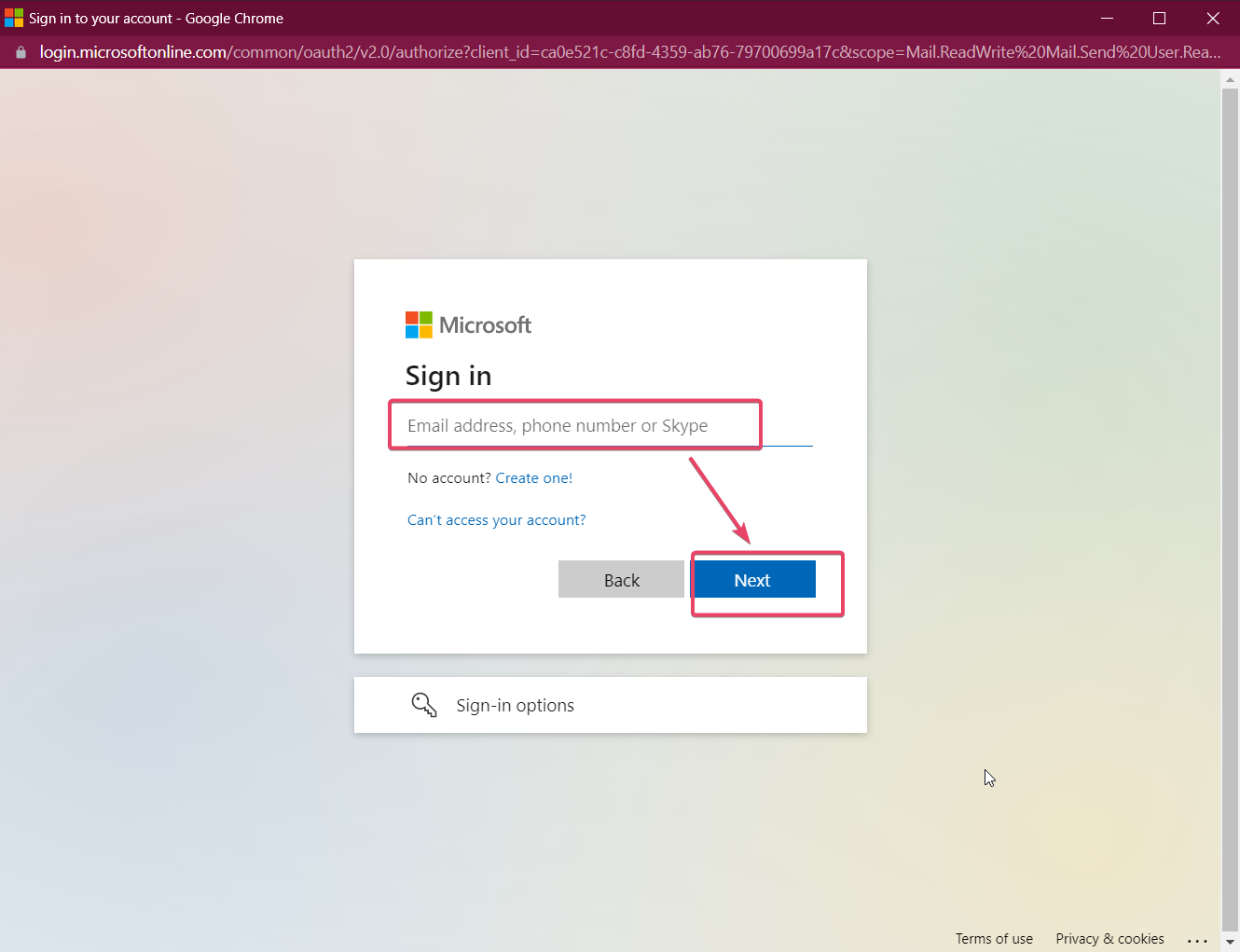
Complete the authorization by entering your Outlook email ID credentials.
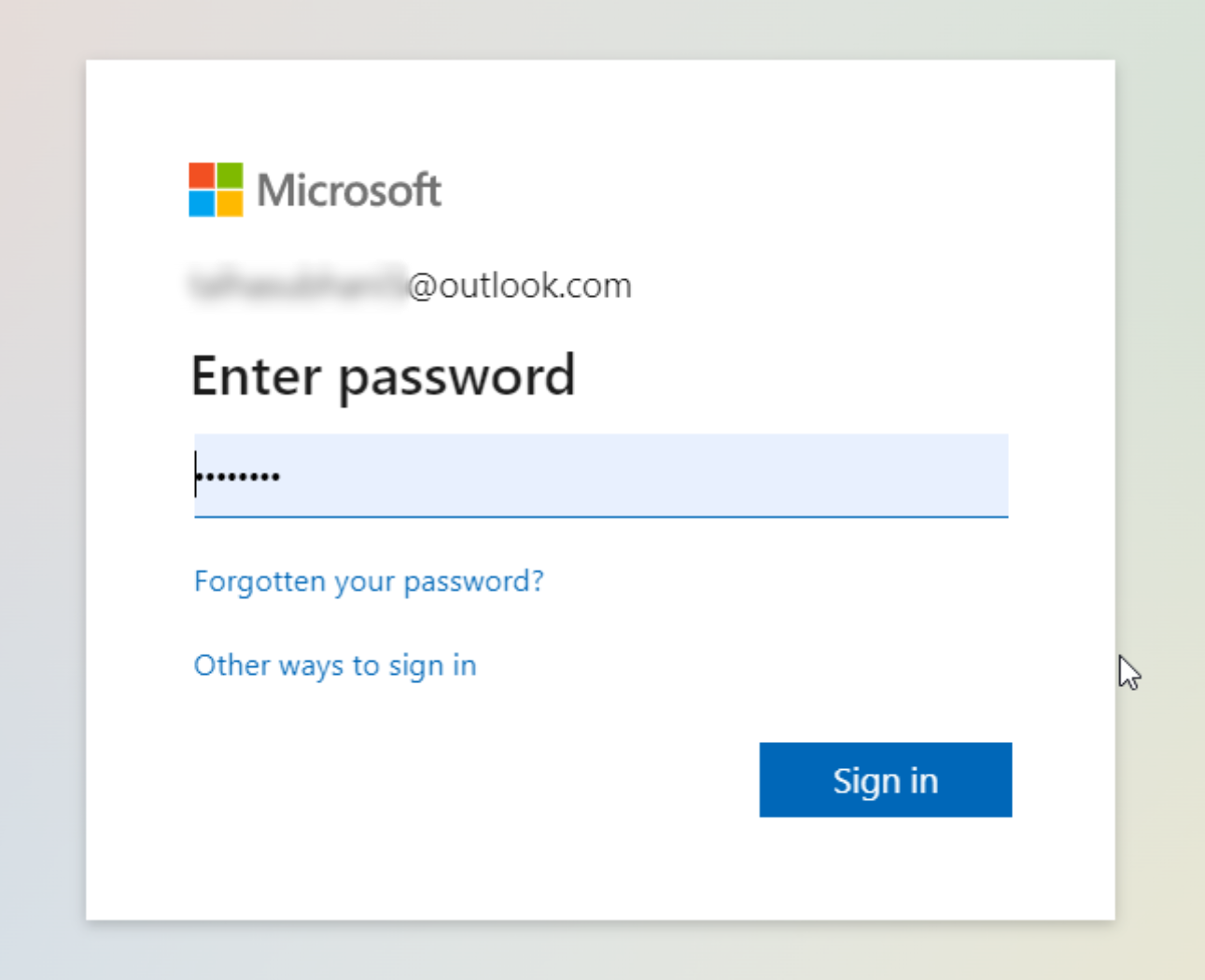
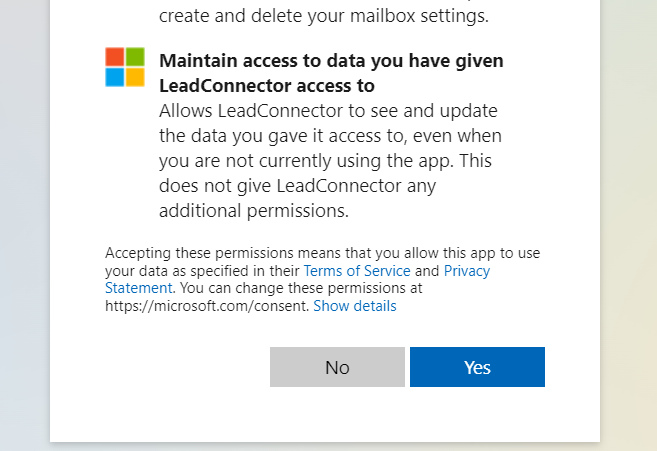
Approve for permissions requested for Kanamé:
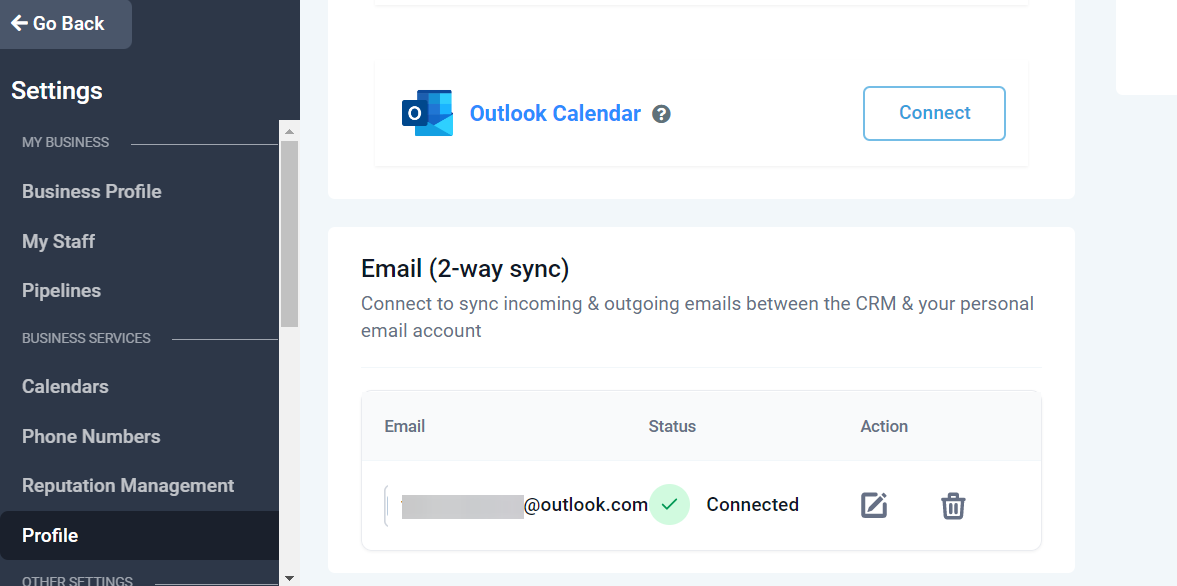
On the profile page, scroll down to the section Email (2-way sync) to view your email in the connection status.
How does the Outlook 2-way sync work between the CRM and your email account?
You would need to send an email to a contact from the CRM to initiate the sync between both platforms.
Please note
The first outbound email needs to be initiated from the CRM to establish the sync
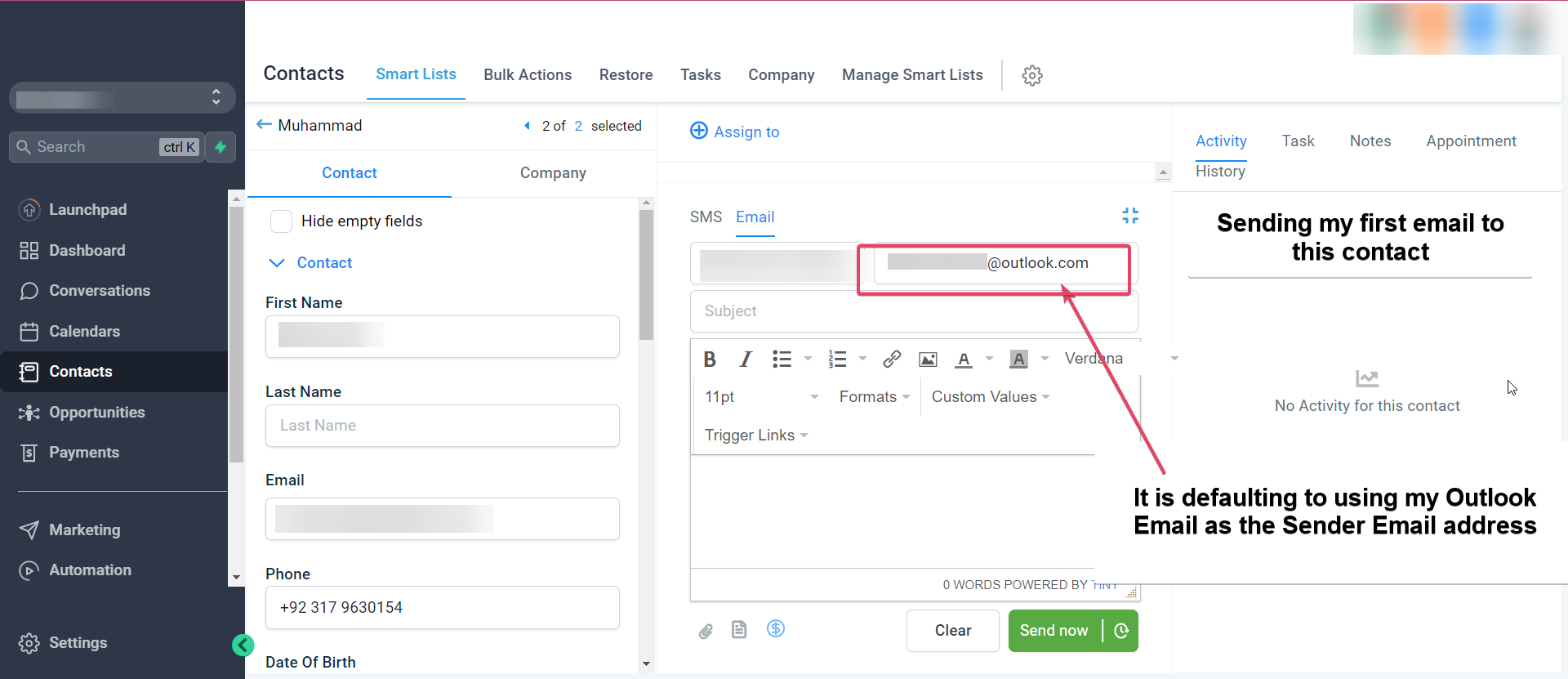
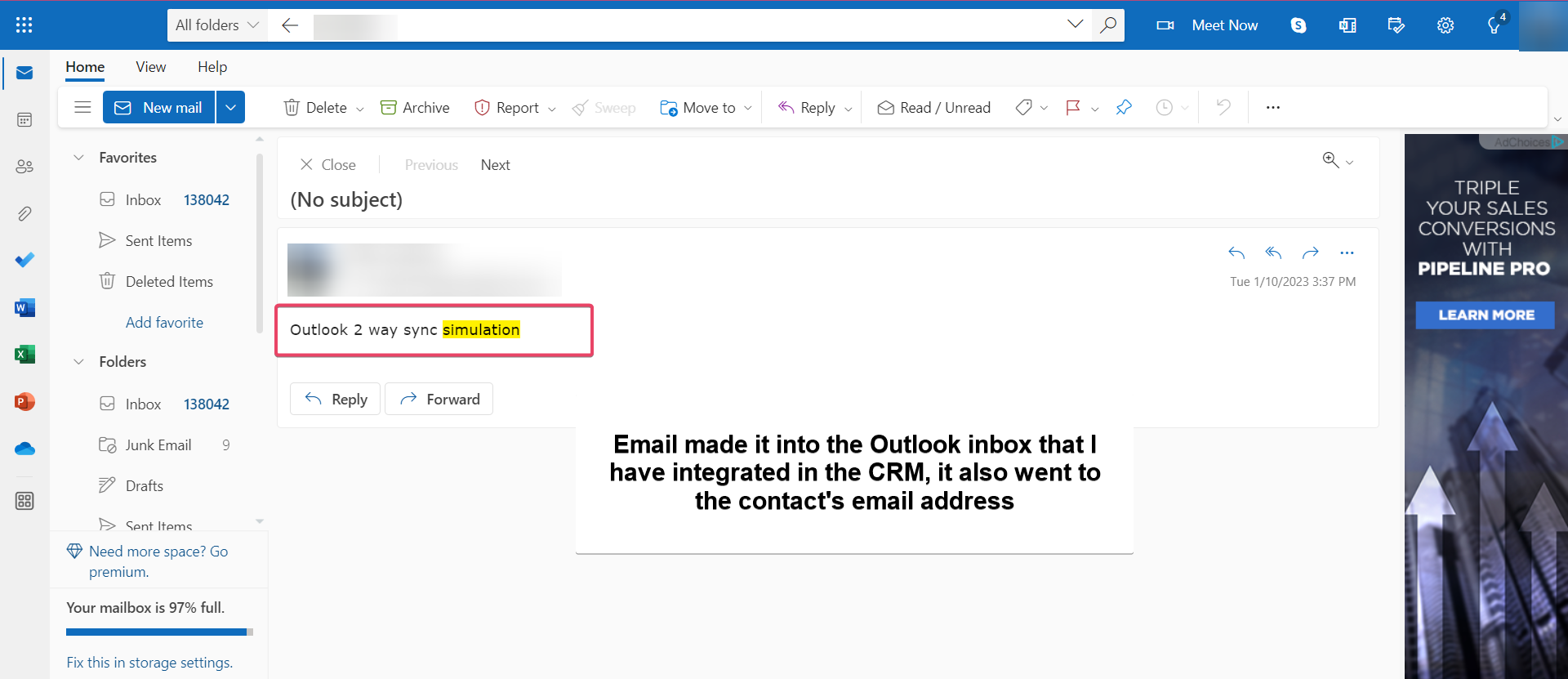
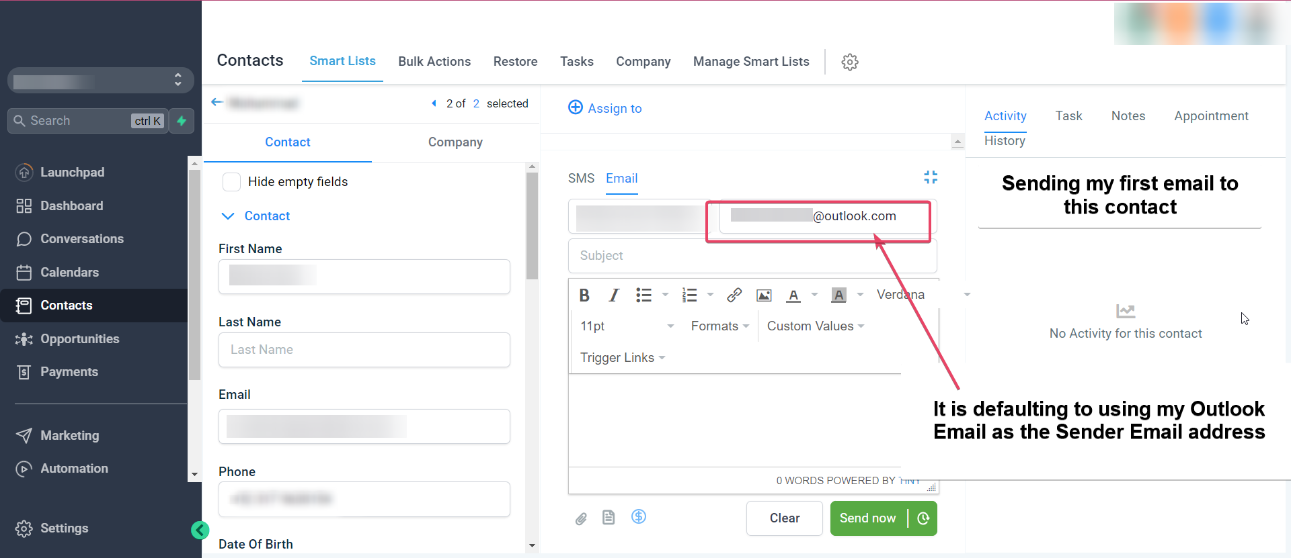
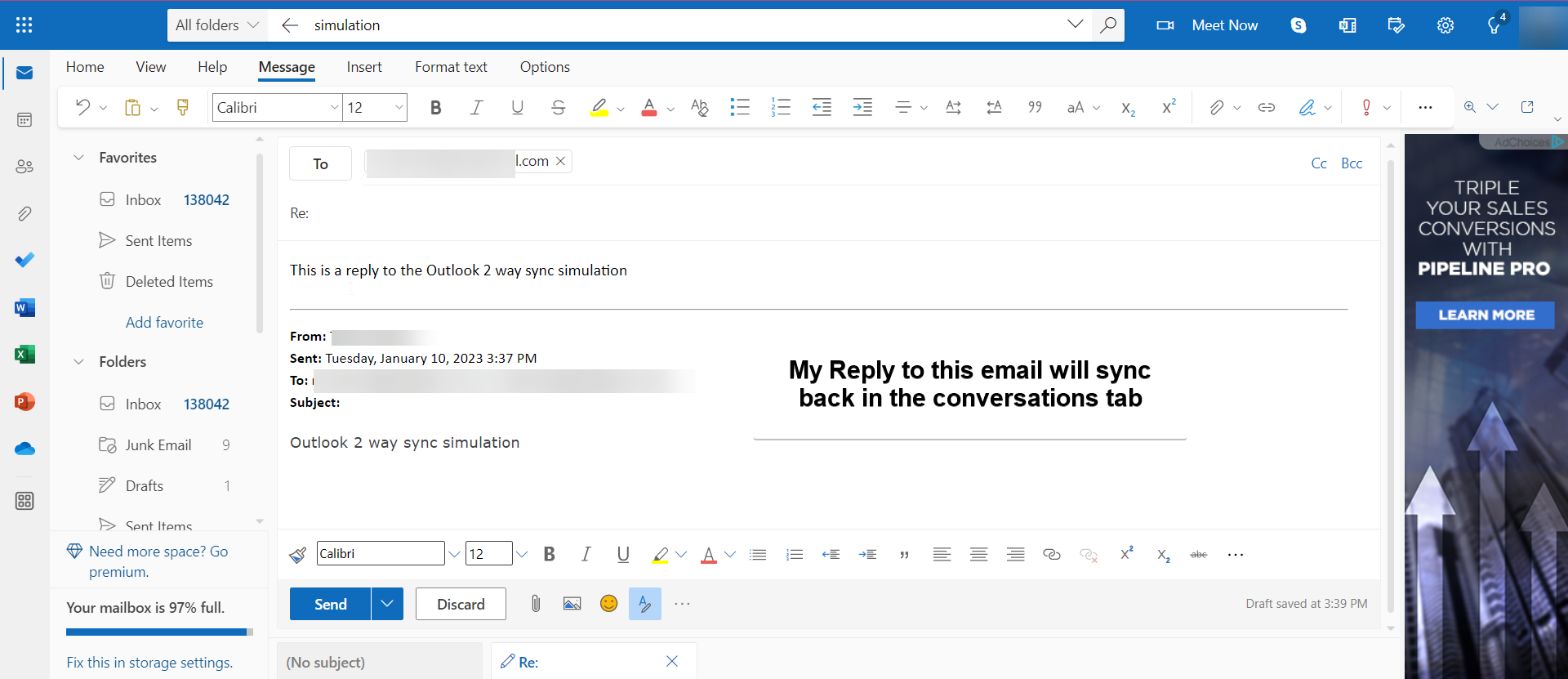
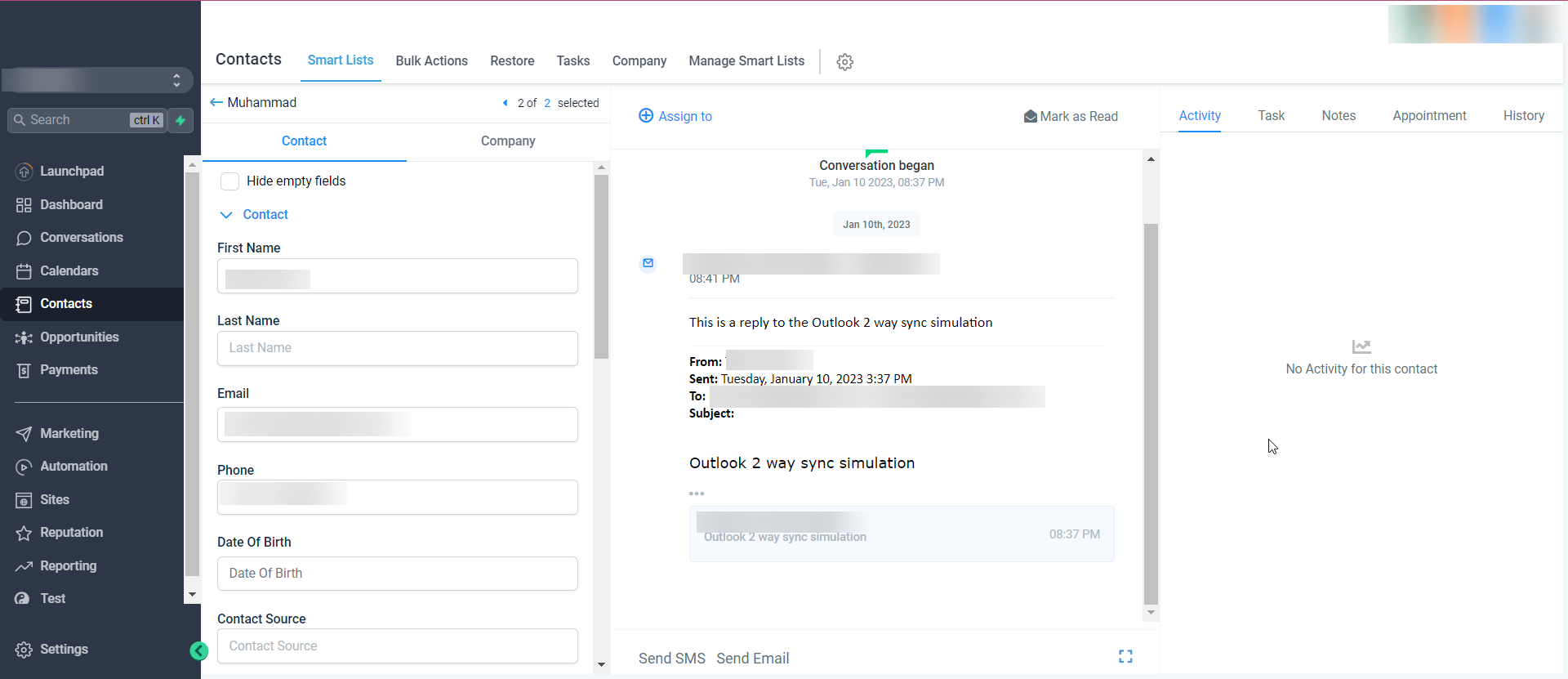
All subsequent messages in the email thread (initiated from the CRM) will be in sync. Outboundemails from your email will reflect in the CRM and vice versa. reflect
An email thread initiated from your email will not sync with the CRM. Only email threads that were formed from the CRM will be in sync. created
If an outbound email was sent (while the sync was in active state) and later the sync was disconnected from the CRM, the subsequent messages in the thread will stop syncing. This will also stop syncing new outbound emails sent from the CRM.
Please note
Attachments of up to 3 MB size work across this sync, any attachments larger than this size will cause the message to not sync over. Supported file types: JPG,JPEG,PNG,MP4,MPEG,ZIP,RAR,PDF,DOC,DOCX,TXT
Other functionalities for both Outlook and Gmail Two-Way Sync
Update Email:
This helps users change their connected email ID to another without disconnecting the previous connection.