
Five minutes on your profile means your name and photo show on the messages you send, and only the alerts you want reach your phone. Each person on your team does this from their own login.
Open your profile
- Select Settings at the bottom of the left menu.
- Under My Business, select My Profile. You’ll see five tabs down the left: General, Security, Email and conversations, Calendar and Notifications.
Update your details
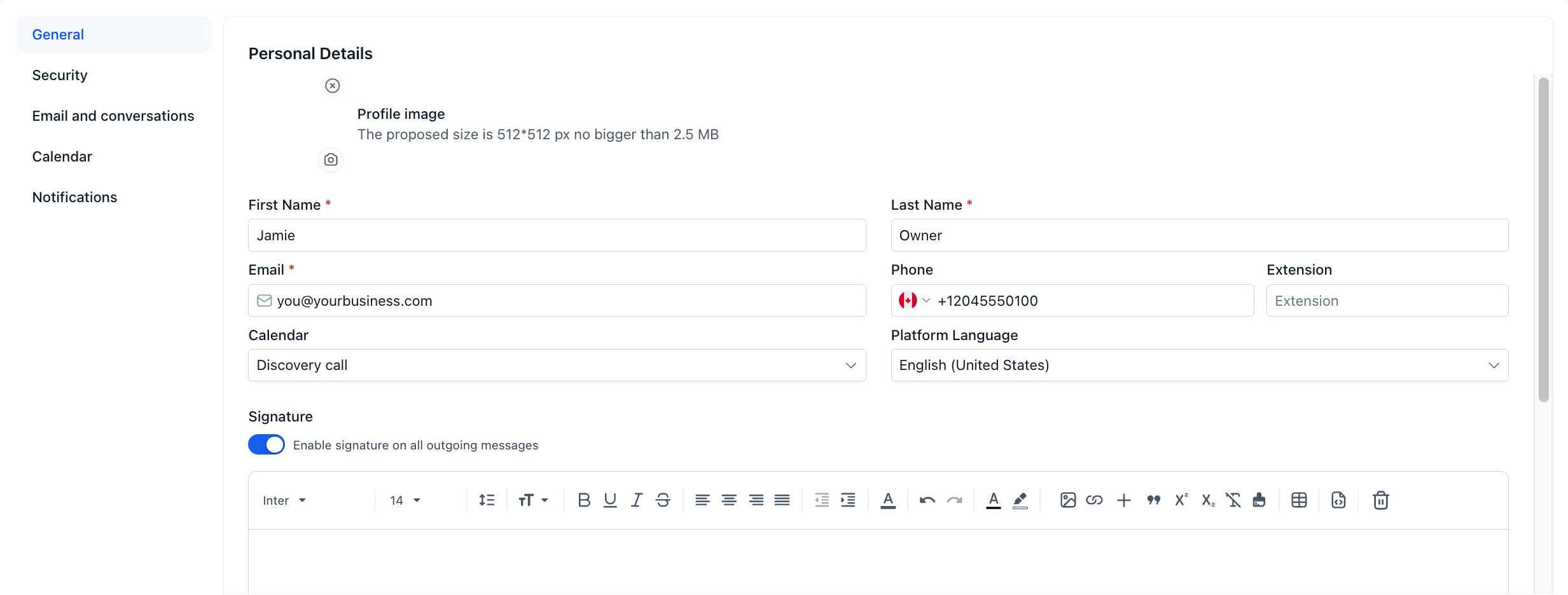
On the General tab:
- Select the camera icon under Profile image to add a photo. A square photo works best.
- Check your First Name, Last Name, Email and Phone. The email is what you sign in with.
- Under Signature, type the sign-off you’d like on the emails you send from Kanamé, such as your name, role and phone number. Leave Enable signature on all outgoing messages on if you want it added automatically.
- Select Update profile.
Change your password
- Select the Security tab.
- Enter your current password, then your new one twice.
- Save. If you’ve forgotten your password, sign out and use Forgot password? on the sign-in page instead.
Choose your notifications
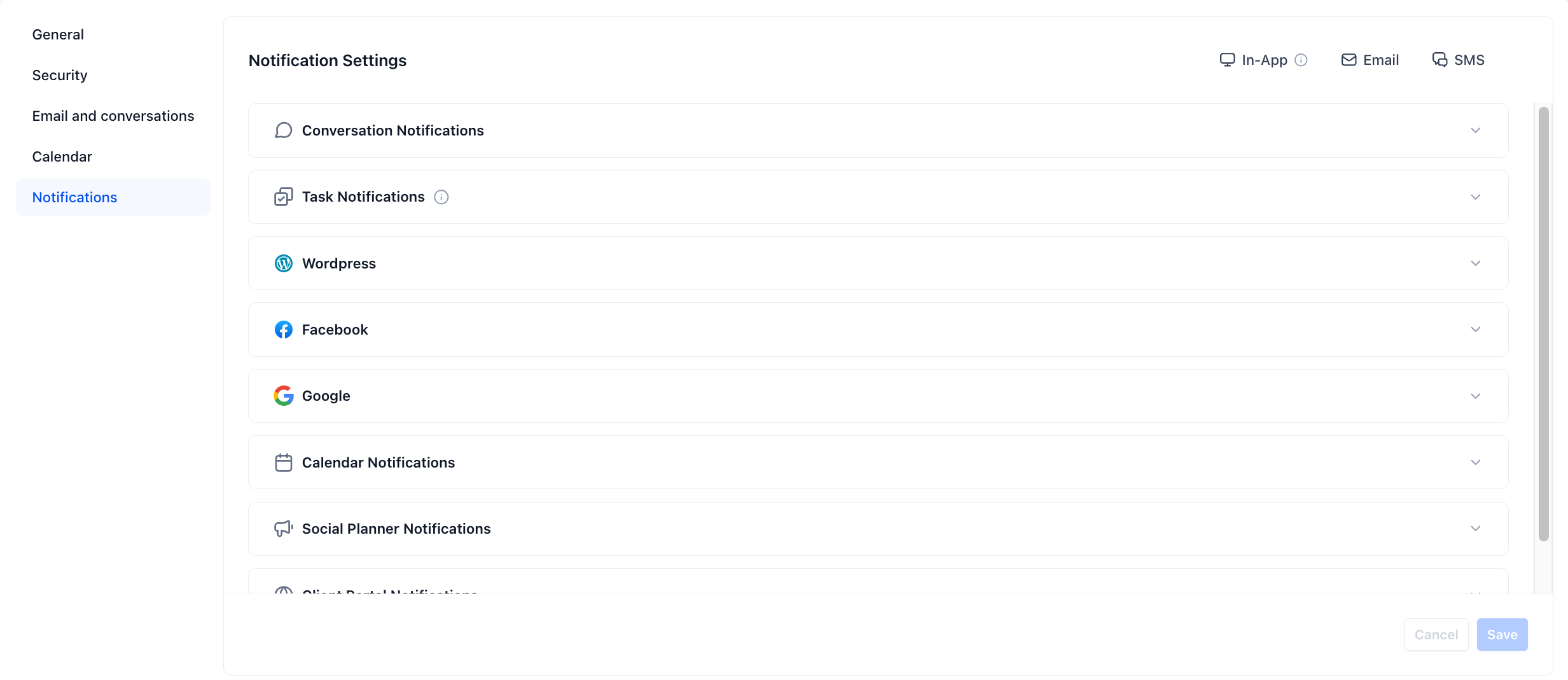
Kanamé can tell you when a message arrives, a booking is made or a task is due. You decide where those alerts go.
- Select the Notifications tab.
- Each row is a type of alert: Conversation Notifications, Calendar Notifications, Task Notifications and so on. Open a row to see the options inside it.
- For each one, tick the columns you want: In-App (a bell in Kanamé), Email, or SMS (a text to your phone).
- Select Save.
Push alerts on your phone come from the app: The Lead Connector app sends its own push notifications for new messages and bookings. Install it and allow notifications when it asks, and you’ll never miss a reply.
Where to go next
- Connect your Google or Outlook calendar: the Calendar tab on this same page.
- Sync your Gmail or Outlook email: the Email and conversations tab.
- Install the Lead Connector app: alerts and replies from your phone.