
Connect your Canva account once and your designs show up in Kanamé’s Media Storage. Import the ones you want, and they’re ready for your social posts, your emails and your website.
Connect your Canva account
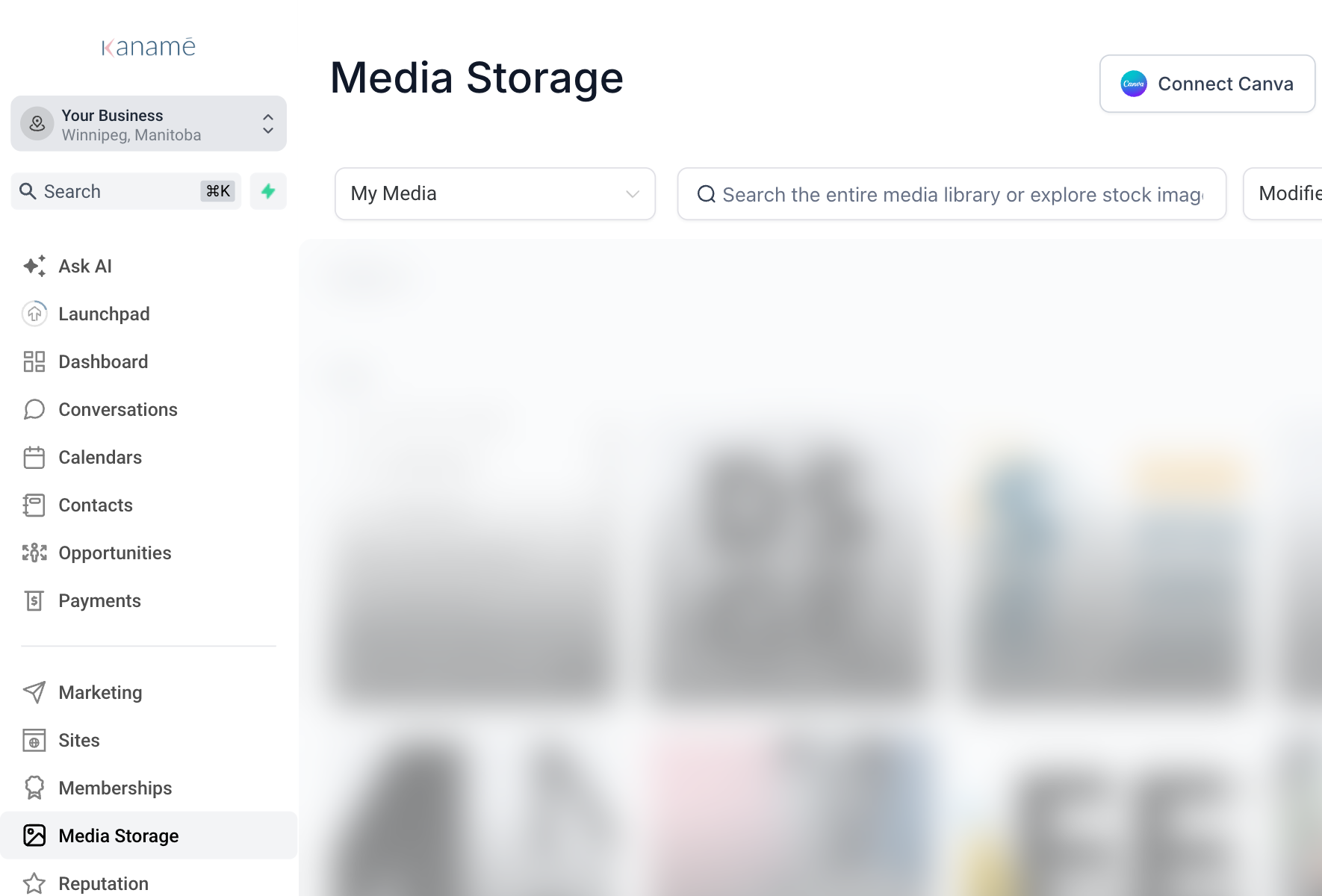
Kanamé connects one Canva account to your business, so connect the account your designs are made in.
- Select Media Storage in the left menu.
- Select Connect Canva at the top of the page.
- Canva opens in a new tab. Sign in, then select Allow.
- Go back to Media Storage. The button now says Connected.
Bring a design into Kanamé
A design has to be imported before you can use it anywhere else in Kanamé.
- In Media Storage, open the My Media menu and choose Canva. Your Canva designs appear.
- Find the design. Select the three dots at its top right, then Import to Media Library.
- The design is saved in My Media as a new file: a one-page design as a PNG image, and a design with more pages as a PDF. Now choose it from your media like any other picture when you schedule a social post, send an email to your list or update your website.
Bring in a design you changed
An imported design is a copy. Changes you make in Canva later don’t reach it.
- Make your changes in Canva.
- Import the design again, the same way. The new copy is saved in My Media next to the old one.
Who can edit in Canva from Kanamé: Only the person who connected Canva can open a design in Canva’s editor from Kanamé (the three dots, then Edit in Canva). Everyone else on your team can still browse, download and import every design.
Optional: switch to a different Canva account
- Select App Marketplace in the left menu, then Installed Apps, then Canva.
- Select Uninstall. Designs you’ve already imported stay in Media Storage.
- Go back to Media Storage and select Connect Canva to connect the other account.
Where to go next
- Schedule a social post: post your designs to Facebook, Instagram and more.
- Send an email to your list: put a design in your next email.
- Update your website: swap a picture on your site for a new design.